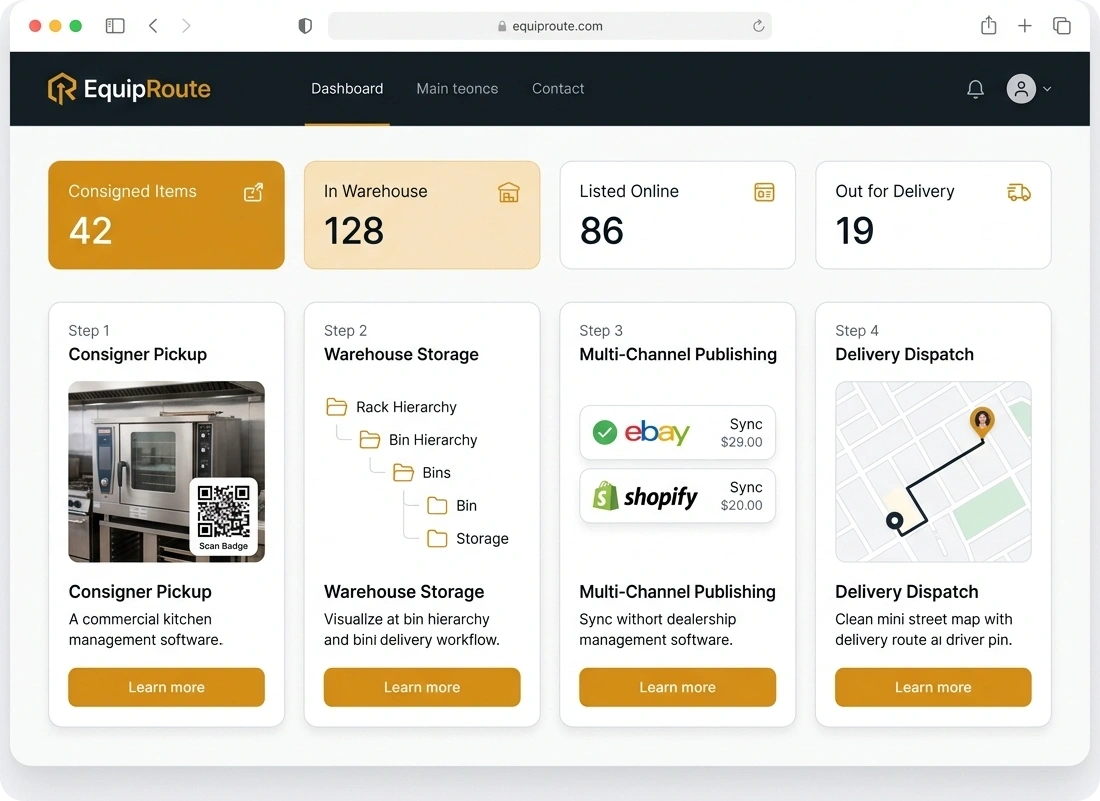

QR scanning
Use mobile QR scanning to speed up receiving, storage placement, picking, and packaging verification with zero manual entry errors.
Follow these sequential steps in EquipRoute to execute your workflow smoothly and keep inventory accurate.
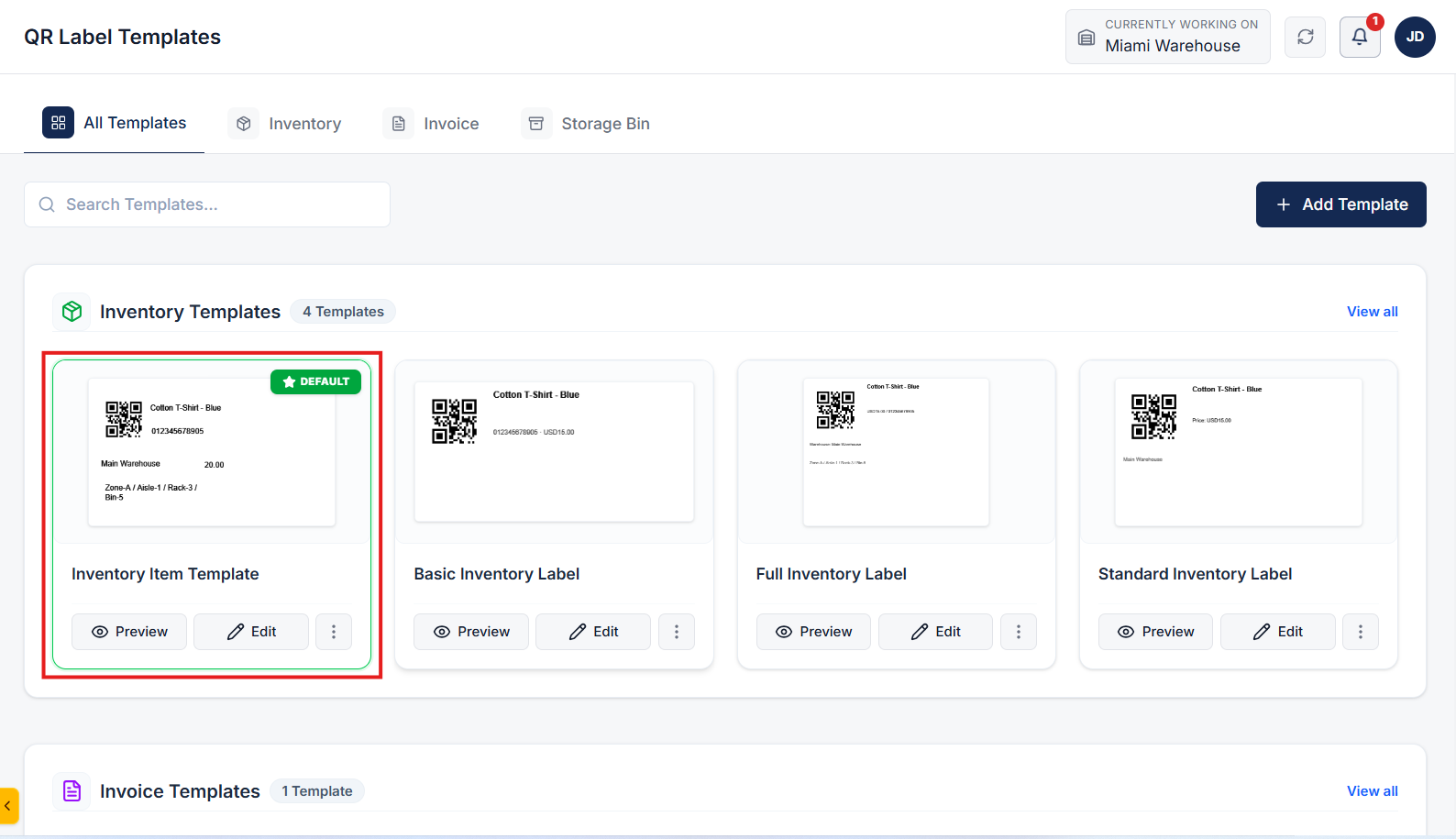
Go to the QR Templates page located under the Administration section in the main navigation menu.
On this page, you can manage all your templates for inventory items, invoices, and storage bins.
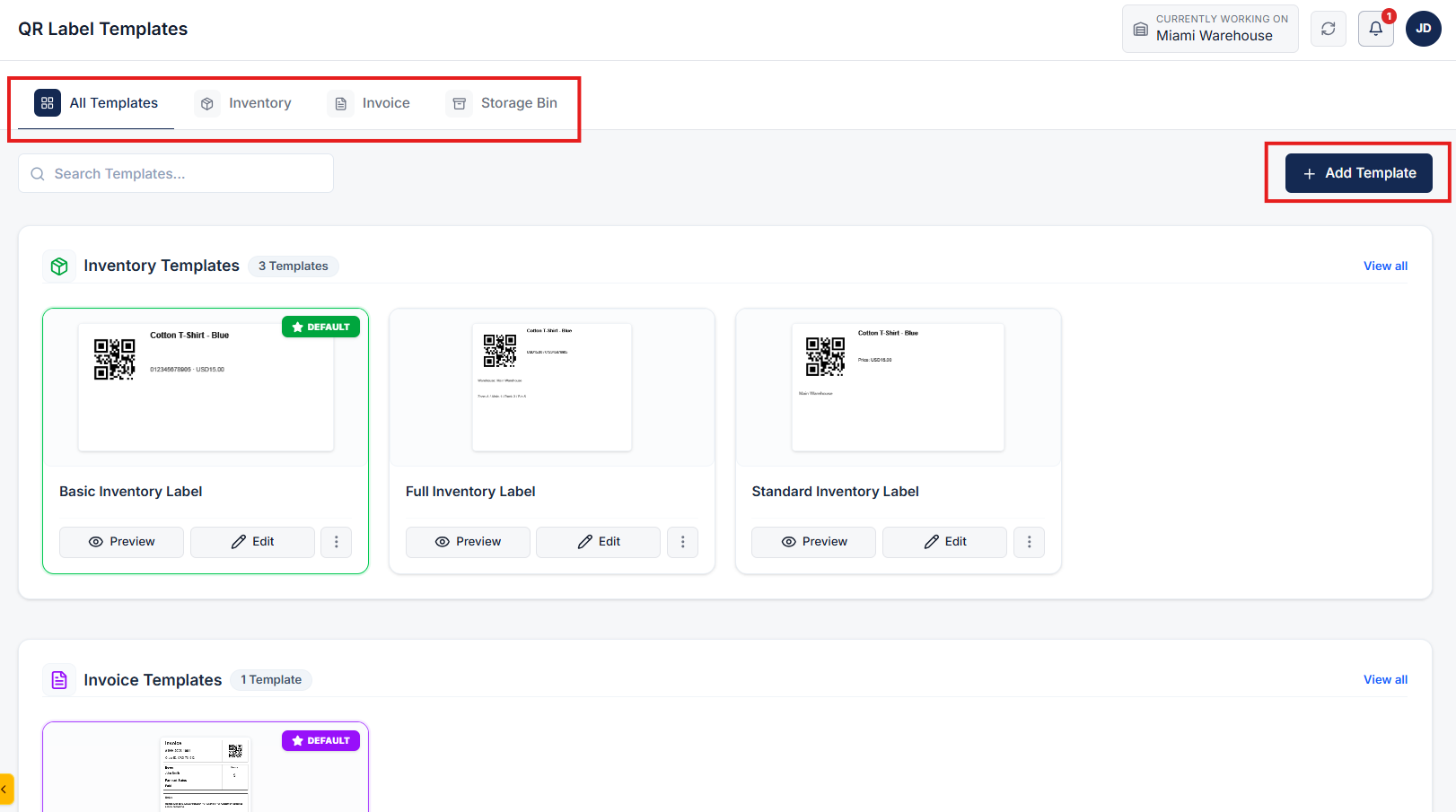
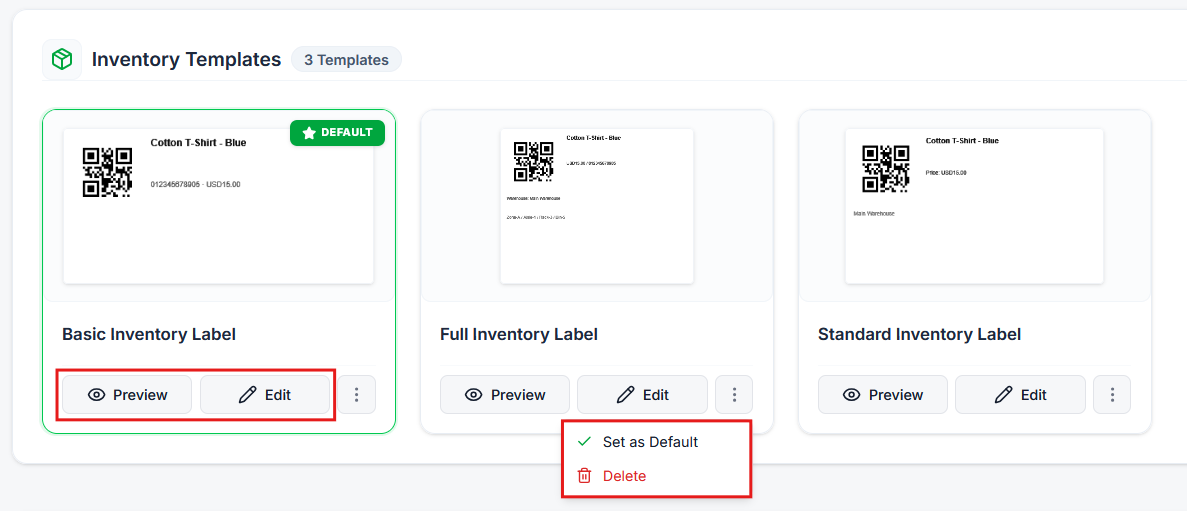
On the QR Templates page, easily manage your existing layout configurations:
To create a customized template, click the Add Template button at the top of the page.
This will open the template builder interface where you can configure custom dimensions, layout elements, and sample data.
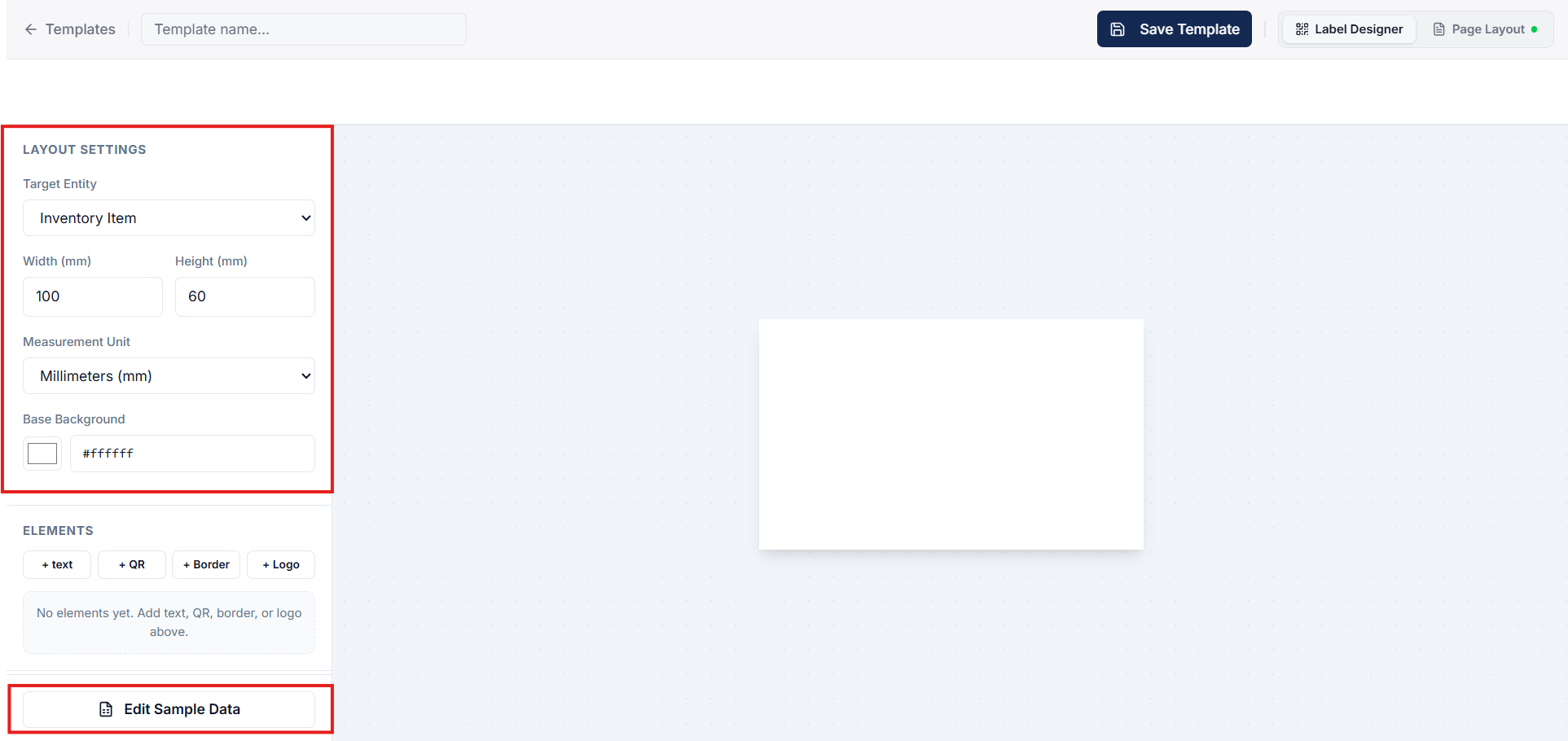
In the builder, start by defining the core layout settings for your QR code label:
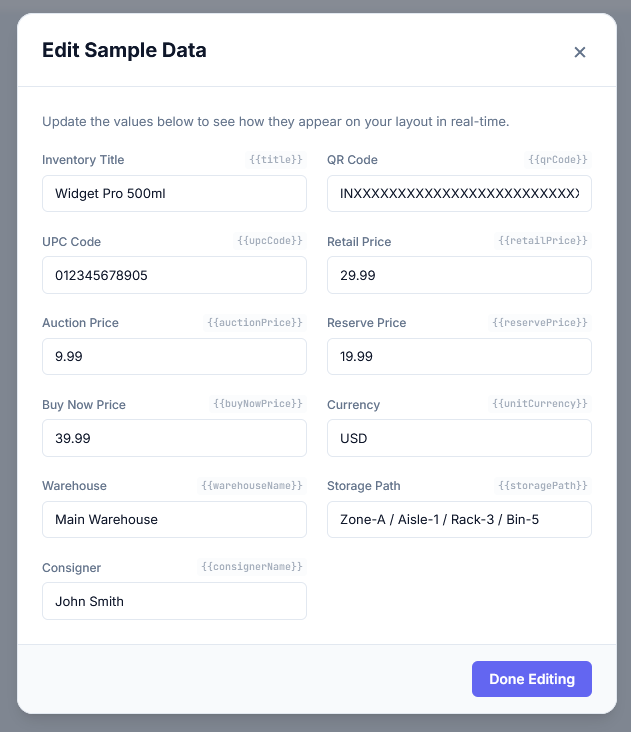
Click the Edit Sample Data button to open the preview sample data popup.
In this popup, customize sample text and data values to see how dynamic fields will appear directly on your layout preview. Click Done Editing to save the customized values and return to the canvas.
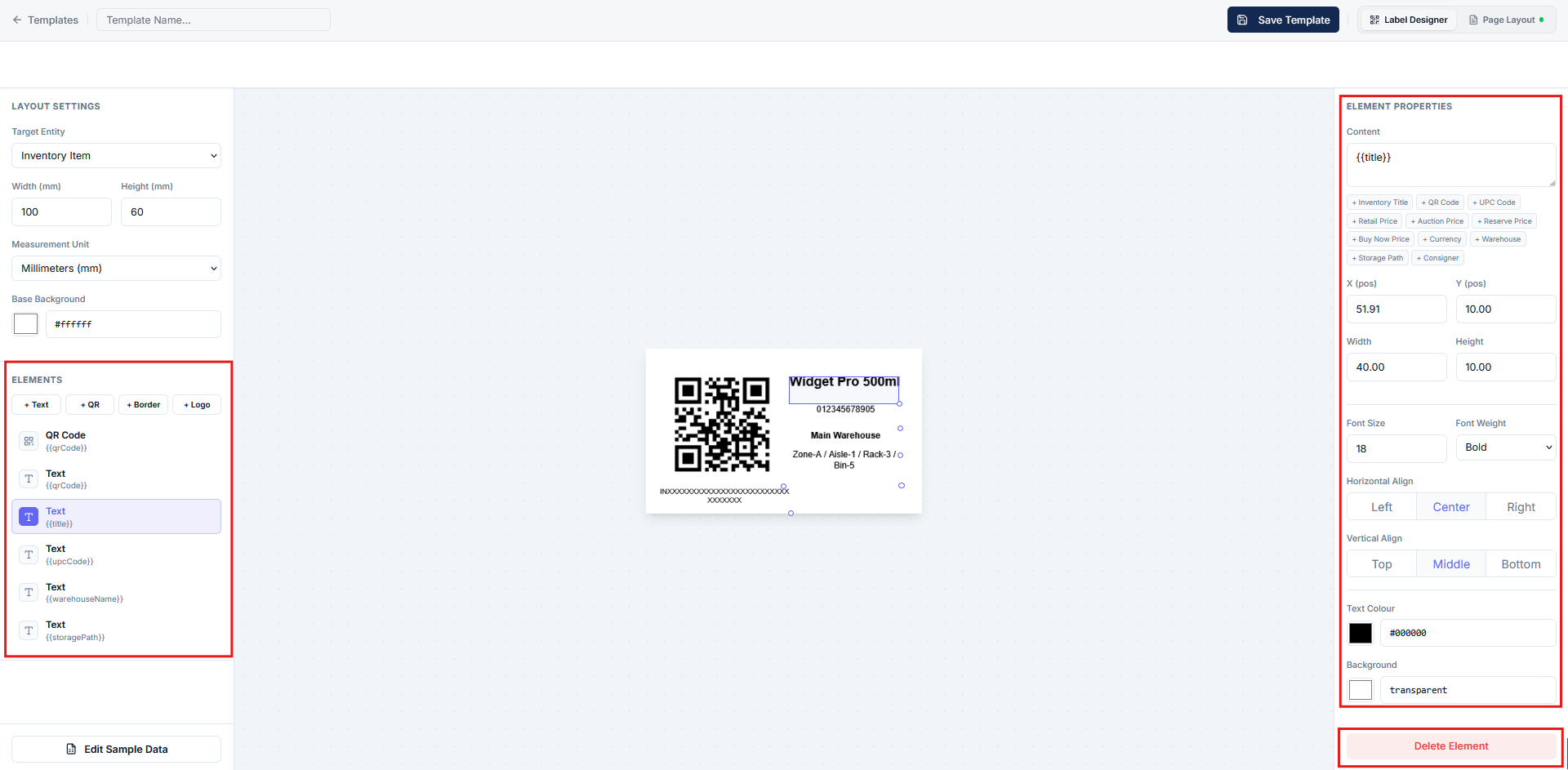
In the Elements section, click on any element you want to place on your template:
Switch to the Page Preview tab to see how multiple QR code labels render on a printed page layout:
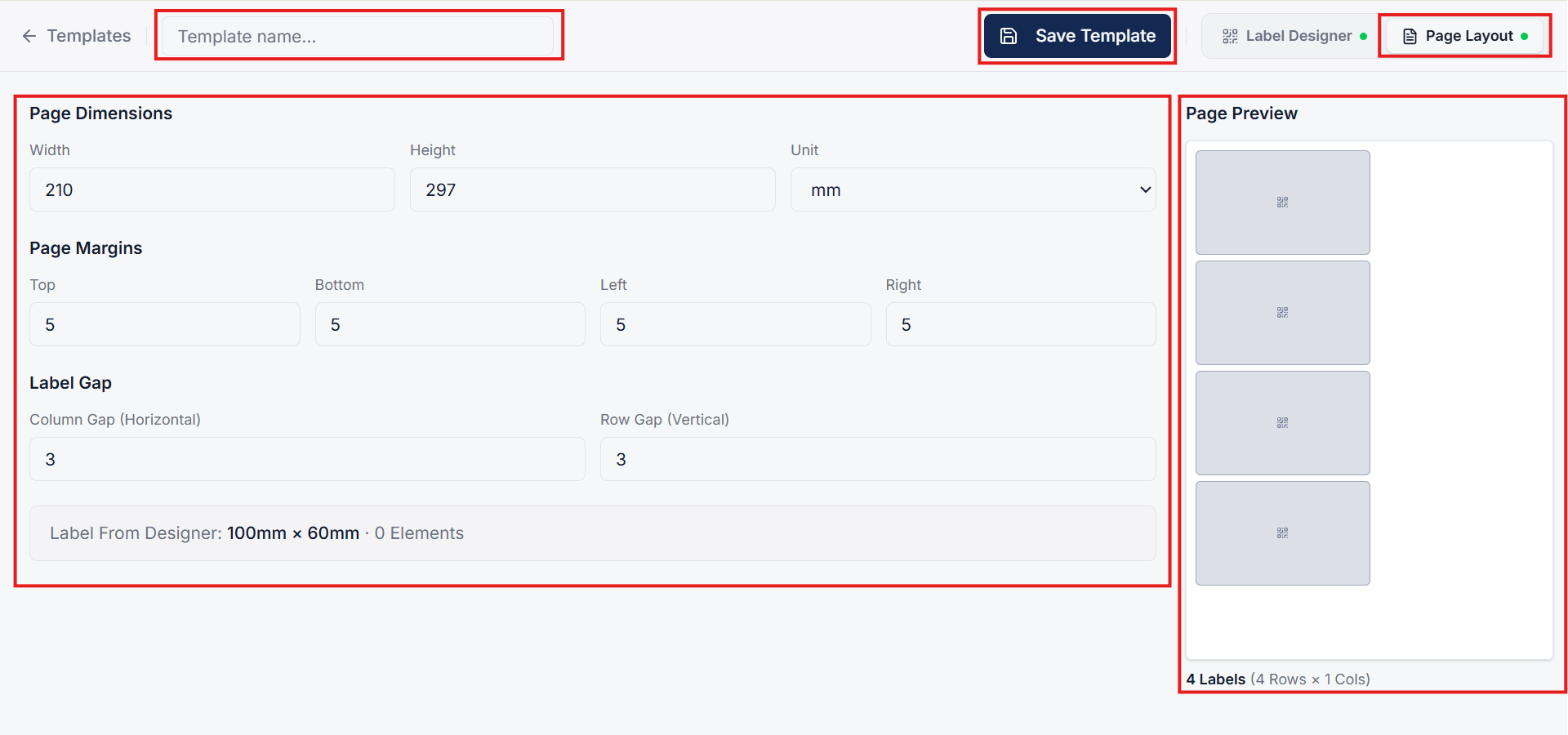
Enter a descriptive Template Name in the designated field and click the Save Template button to persist your new QR layout.
Once created and saved, these custom QR templates can be printed and scanned across various operational workflows:
Clear answers on how this feature integrates into your daily equipment workflow.
Upon dock arrival, technicians scan or print a durable QR tag using a smartphone. The scan opens a mobile check-in form to log serial numbers, capture multi-angle condition photos, assign exact storage locations, and generate a draft listing.
QR codes on items, storage bins, and invoices. Scan to assign a location, verify a pack job, or open the item record without typing.
Yes. Build custom QR templates for items, invoices, or bins. Place dynamic fields, configure sizing, save defaults, and print labels ready for scanning.

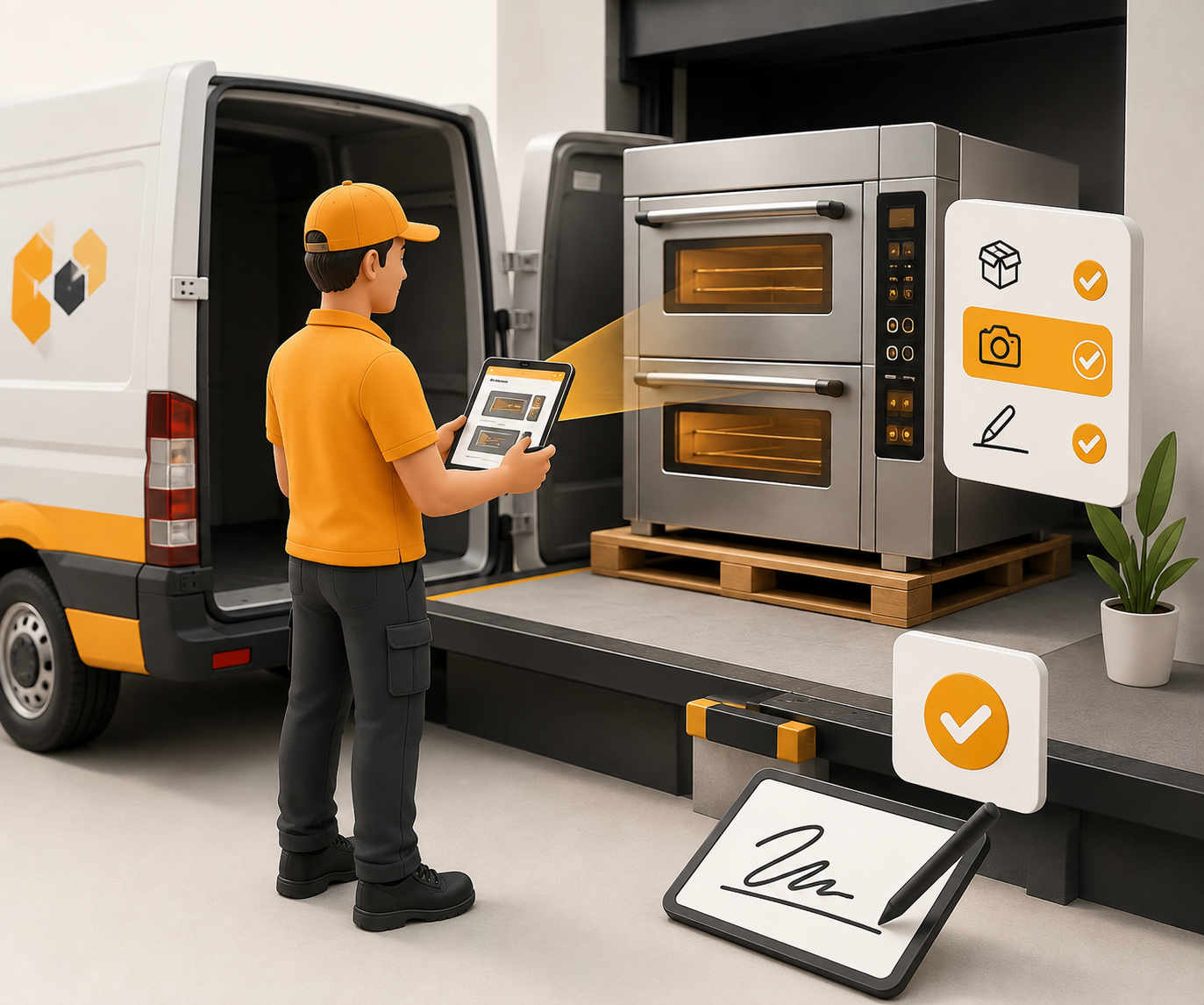
Drivers collect consigner items, capture proof, and check them into inventory.

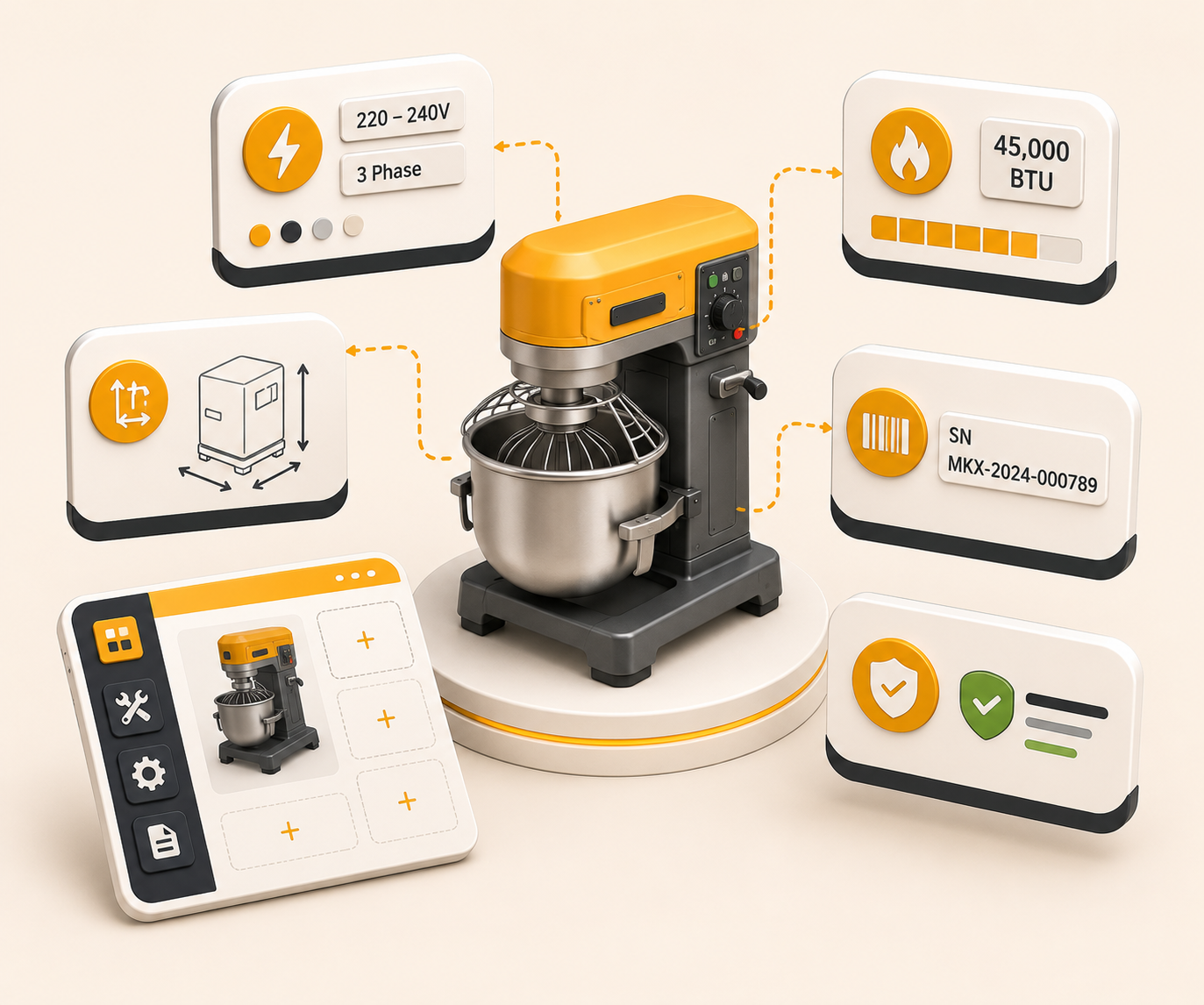
Add, edit, and manage custom fields with auto-generated API keys, display order, and required settings so the right fields appear in the right forms.
See the whole flow, from consigner pickup through warehouse, listing, and delivery, in a personalized live demo.