
Customizable fields
Add, edit, and manage custom fields with auto-generated API keys, display order, and required settings so the right fields appear in the right forms.
Follow these sequential steps in EquipRoute to execute your workflow smoothly and keep inventory accurate.
Navigate to Custom Fields under Administration from the menu. Here, you can manage all your custom fields for both inventory and consigner.
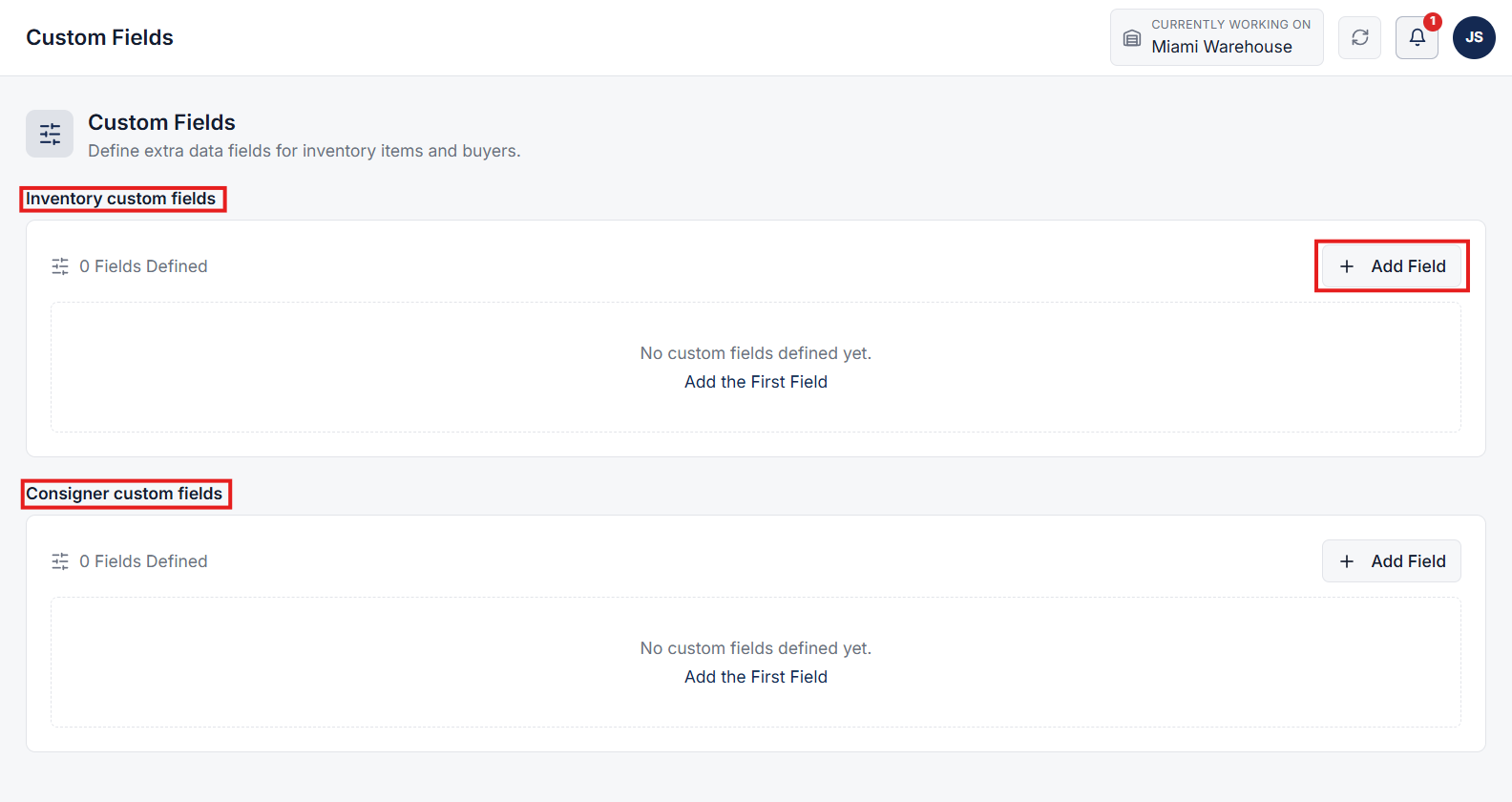
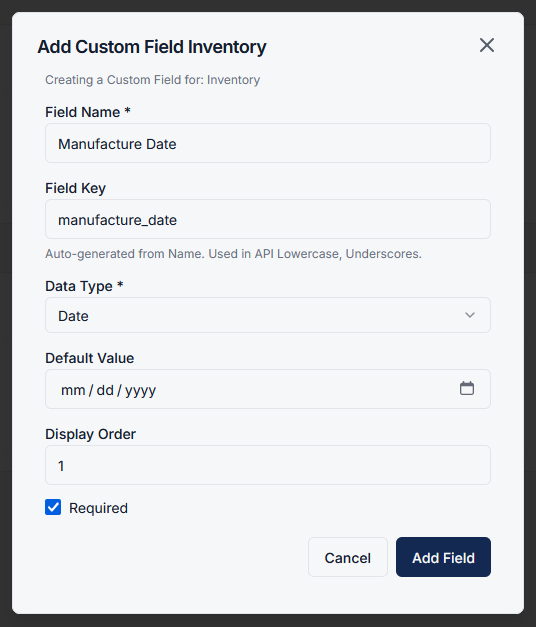
Click on the Add Field button to create a new custom field. A modal will appear where you can configure all the required details:
Once configured, click on the Add Field button to save.
After creating custom fields, you can easily maintain and organize your attributes:
This allows you to keep your data structure flexible, tidy, and up to date.
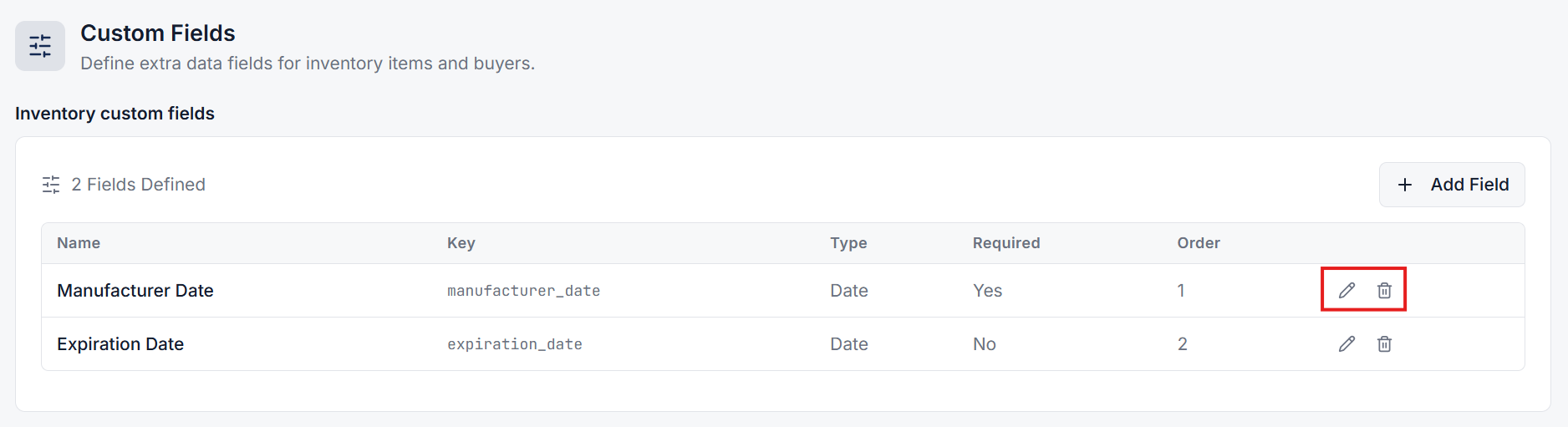
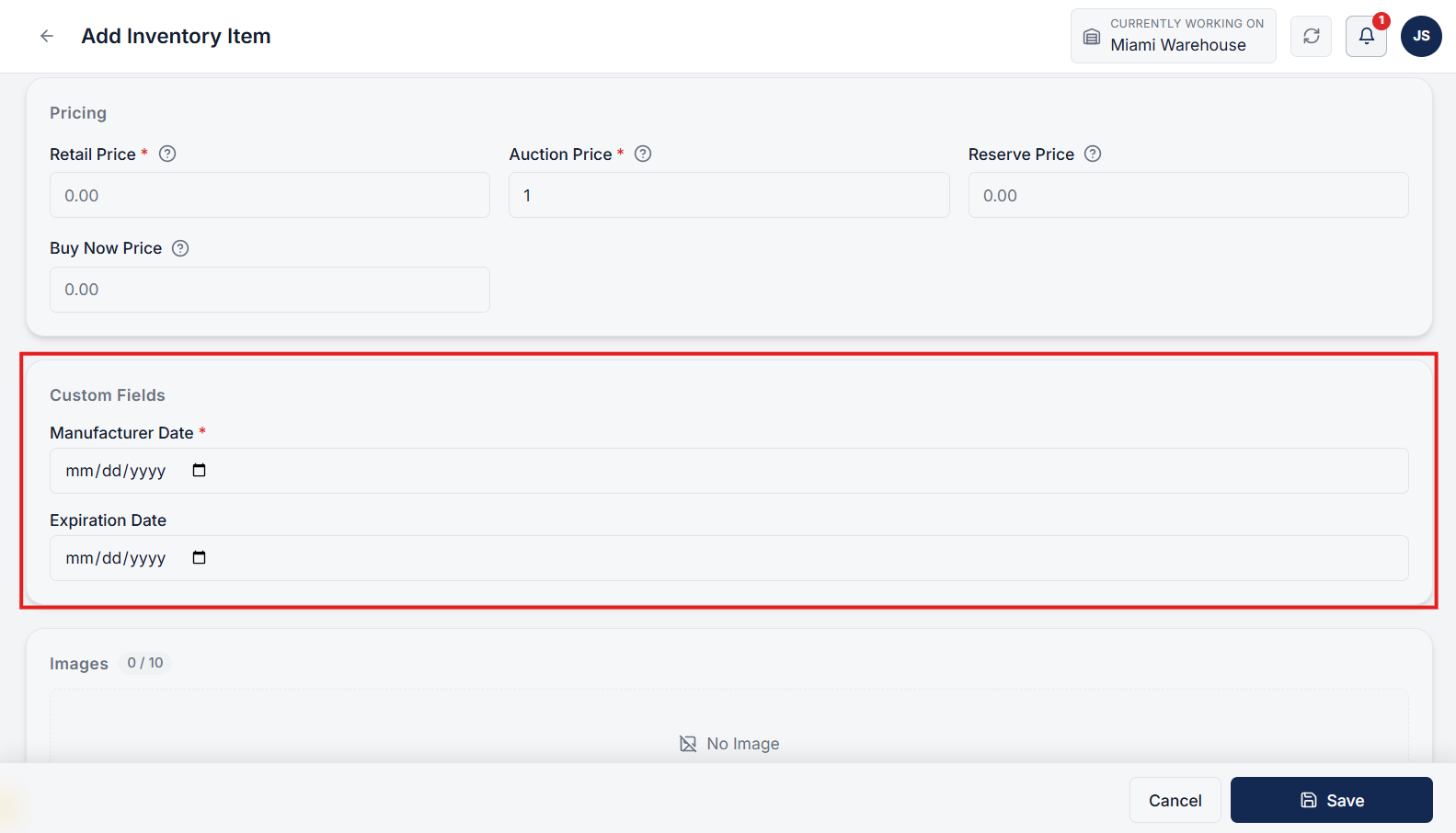
Once a custom field is added (e.g., for inventory), it will automatically appear in the relevant forms. When adding a new inventory item, the newly created custom field will be immediately visible in the Add Inventory form.
Custom fields allow you to tailor the system according to your business needs. You can create different fields for inventory and consigners, ensuring all necessary specifications and metadata are captured efficiently.
Clear answers on how this feature integrates into your daily equipment workflow.
Yes. Inventory and consigner each have their own field list. Add a field to the list that needs it, and it appears on that form.
Yes. Once you save a field, it appears on the matching form. A new inventory field shows when you add an item. Required fields must be filled before save.
EquipRoute auto-generates normalized snake_case keys for API and integration use, which you can also customize if integrating with external ERPs.

Drivers collect consigner items, capture proof, and check them into inventory.

See the whole flow, from consigner pickup through warehouse, listing, and delivery, in a personalized live demo.