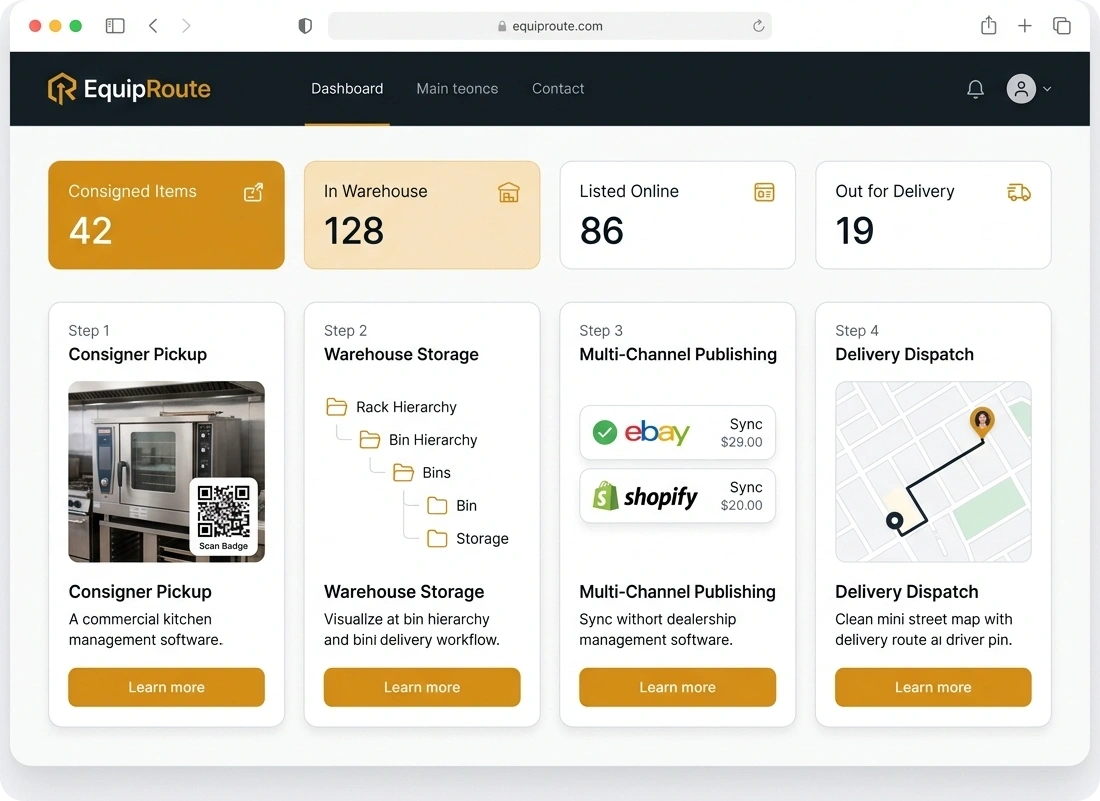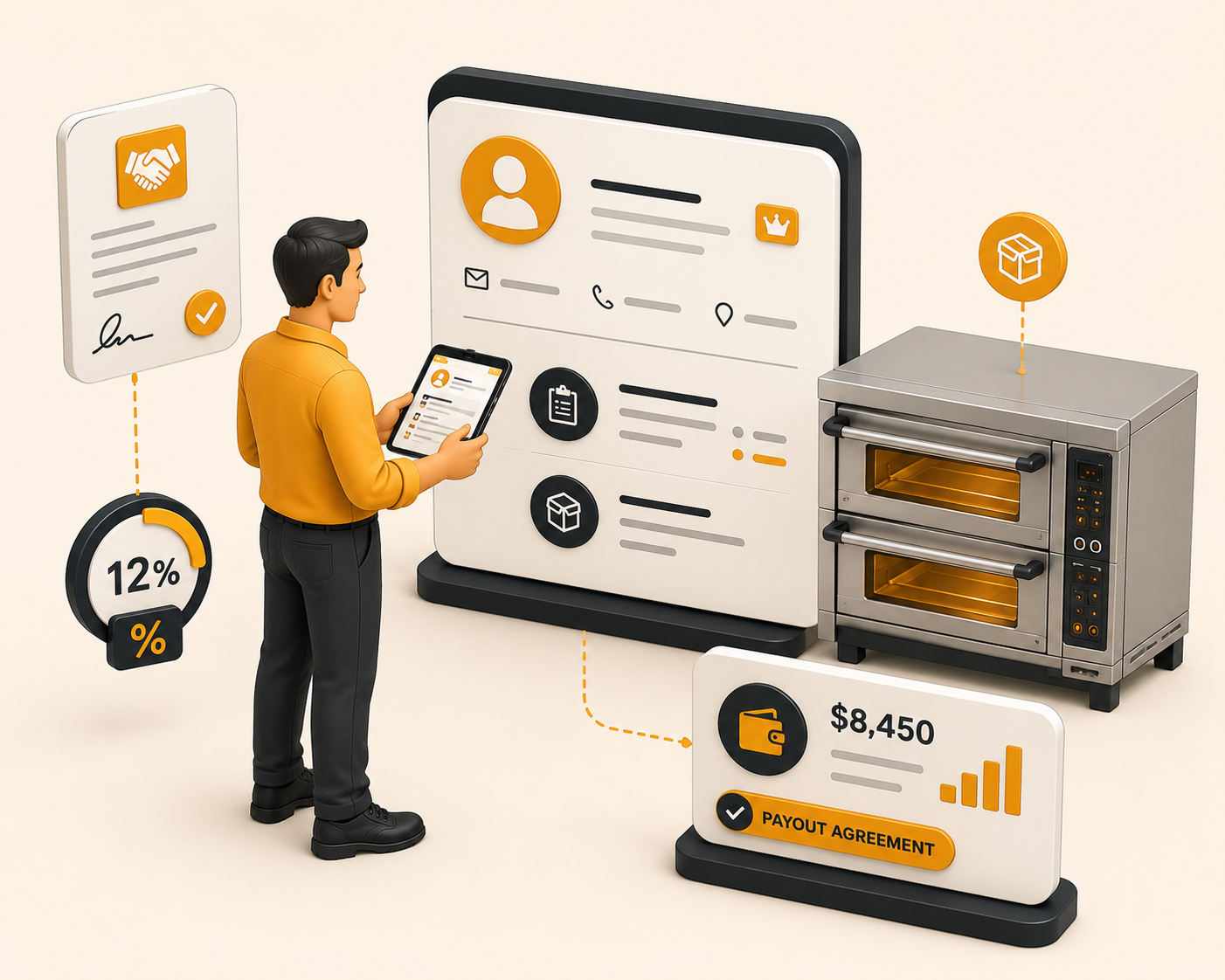

Pickup appointments
Book a pickup slot, pick the invoices, and confirm the time. Consigners collect items on a scheduled dock window instead of walking in unannounced.
Follow these sequential steps in EquipRoute to execute your workflow smoothly and keep inventory accurate.
Navigate to the Manage Booking page to view all your existing appointments.
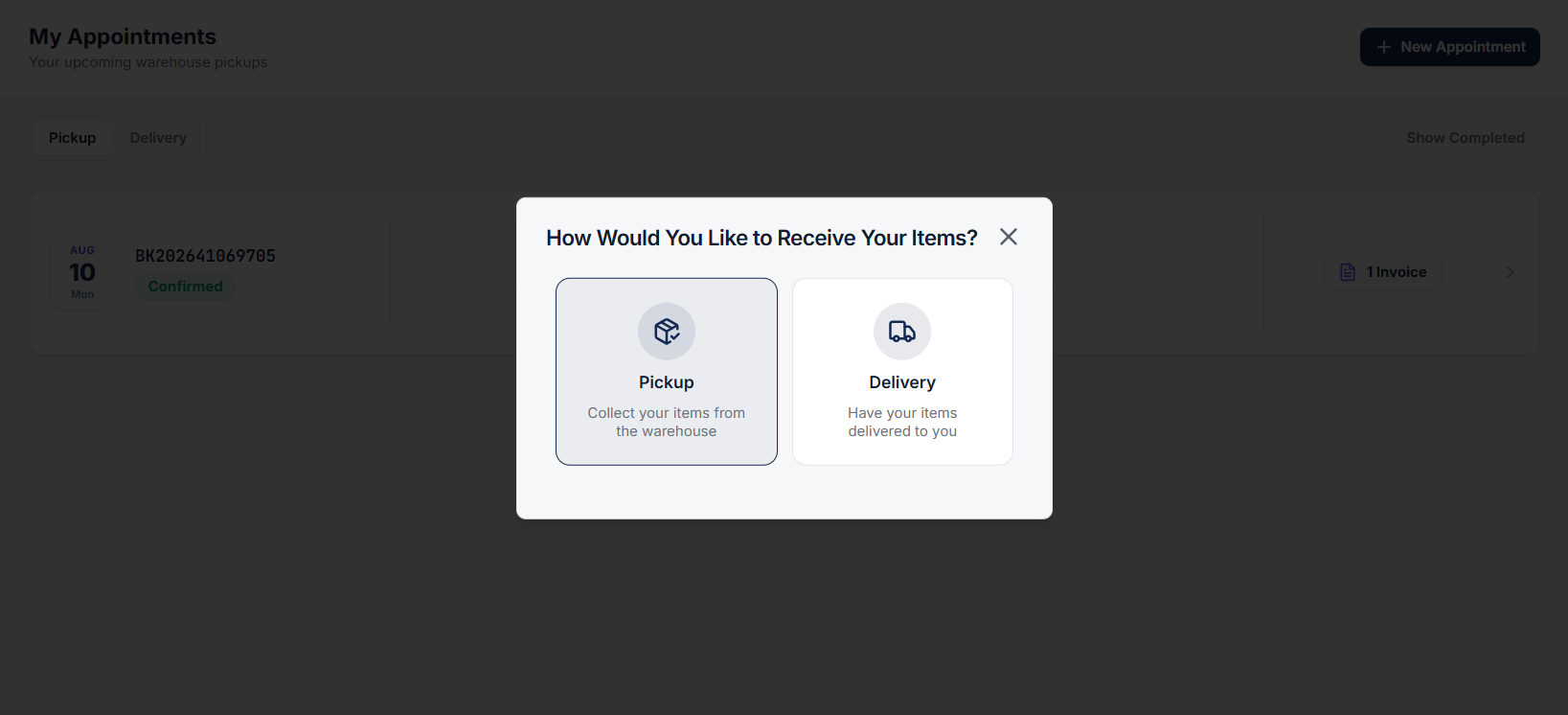
Click on the Add Appointment button to create a new appointment. A popup modal will appear on screen.
Select the Pickup option.
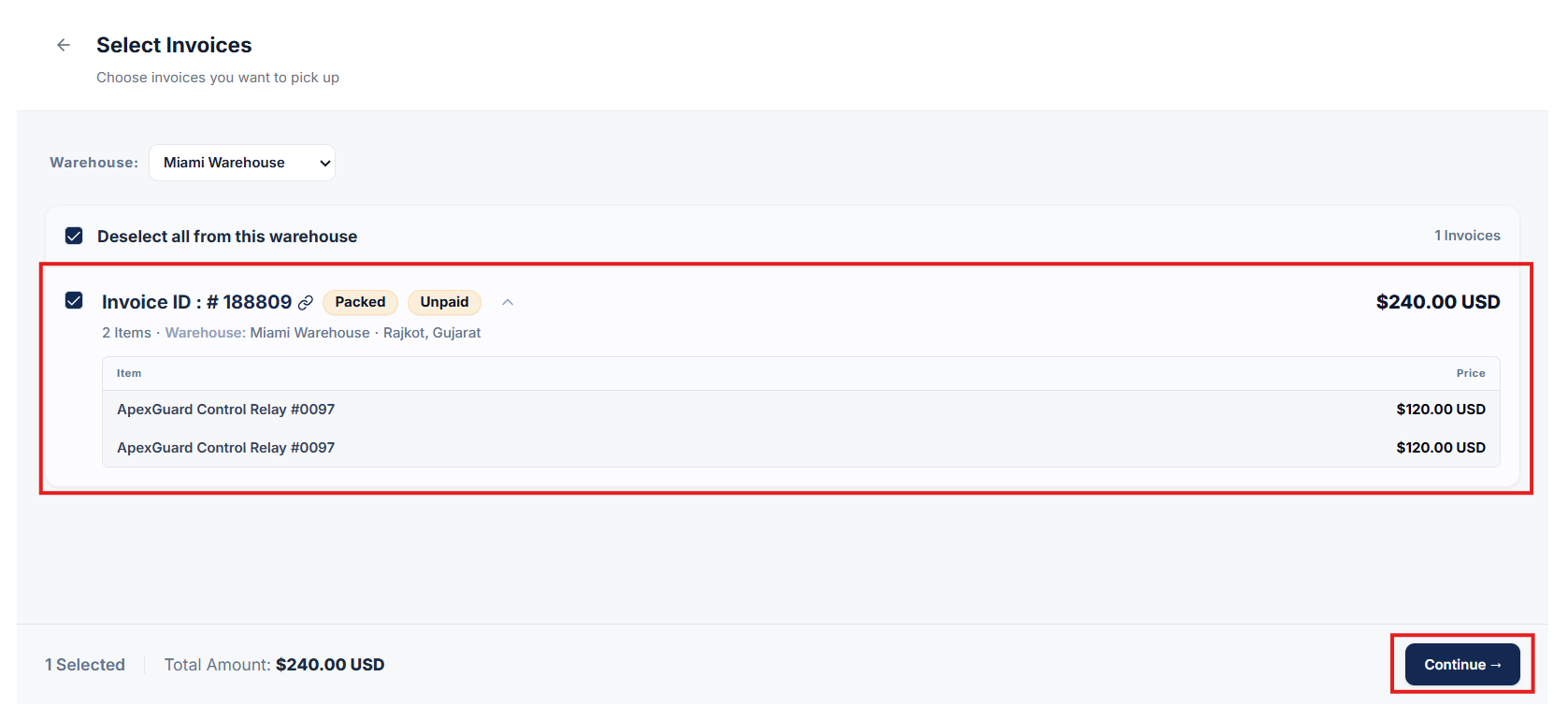
From the list of available invoices, select the specific invoice(s) you wish to pick up.
Click on the Continue button to proceed.
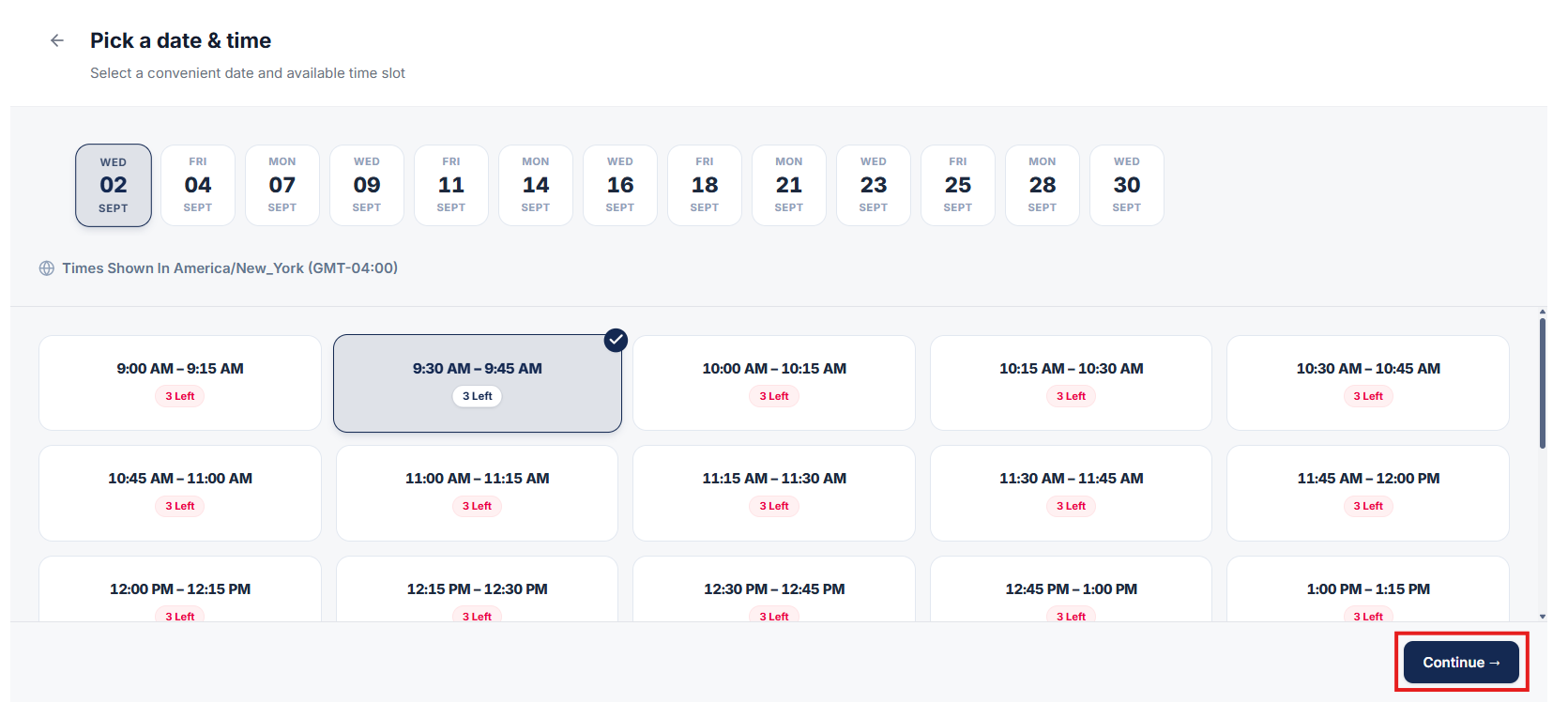
Select your preferred Date and convenient Time Slot for item pickup.
Click on the Continue button to proceed to the final confirmation.
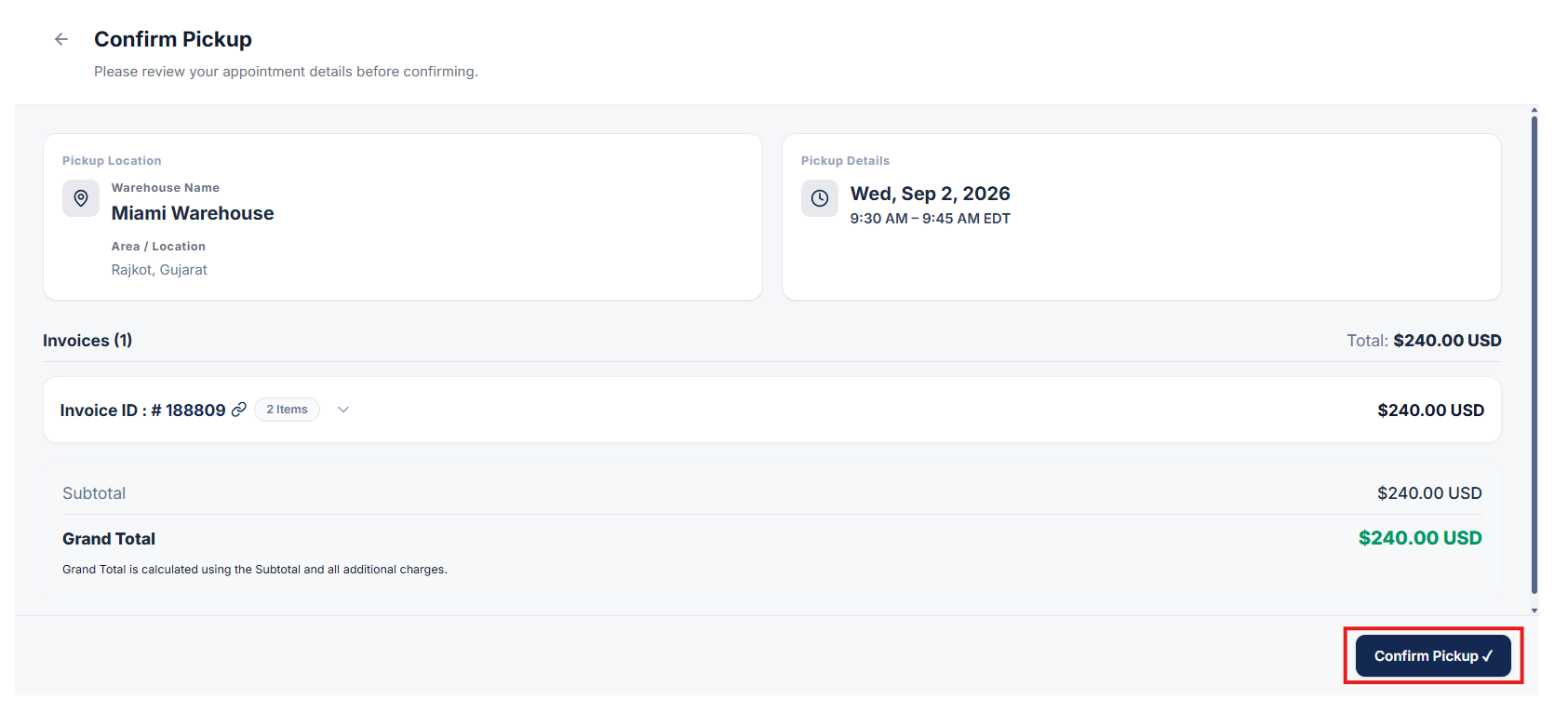
Review your pickup details and click Confirm to schedule your pickup appointment.
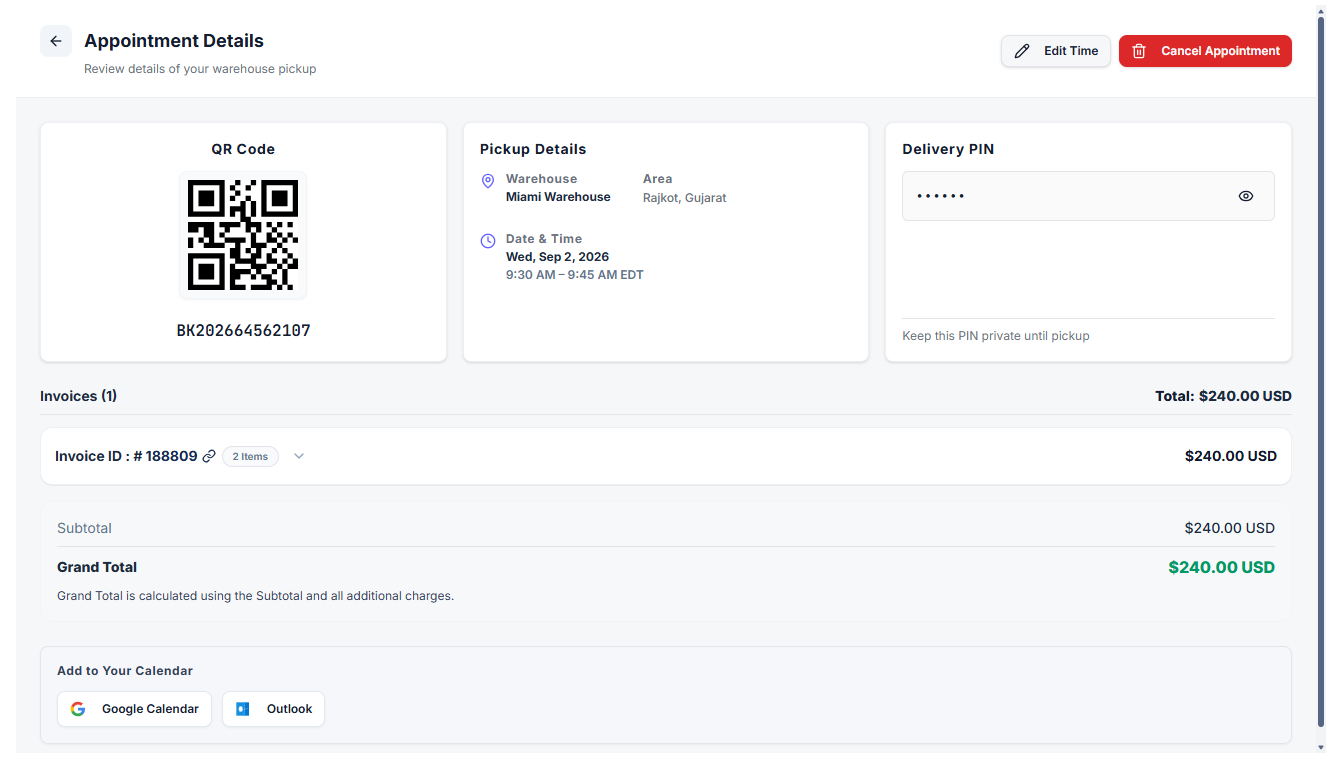
Once confirmed, you can view the full details of your booked appointment.
After an appointment is created, you can also cancel or reschedule the appointment at any time directly from the appointment details view.
Clear answers on how this feature integrates into your daily equipment workflow.
By assigning dedicated dock time slots for each pickup, warehouse crews can pre-stage heavy equipment and allocate forklift resources efficiently without causing loading bay gridlock.
Yes. They open appointments, choose Pickup, select invoices, and lock a date and time. You see the same calendar and can cancel or reschedule if the dock window changes.
It assigns each pickup a time slot so items are collected in a planned window. That keeps the dock from stacking walk-ins while packed invoices wait.

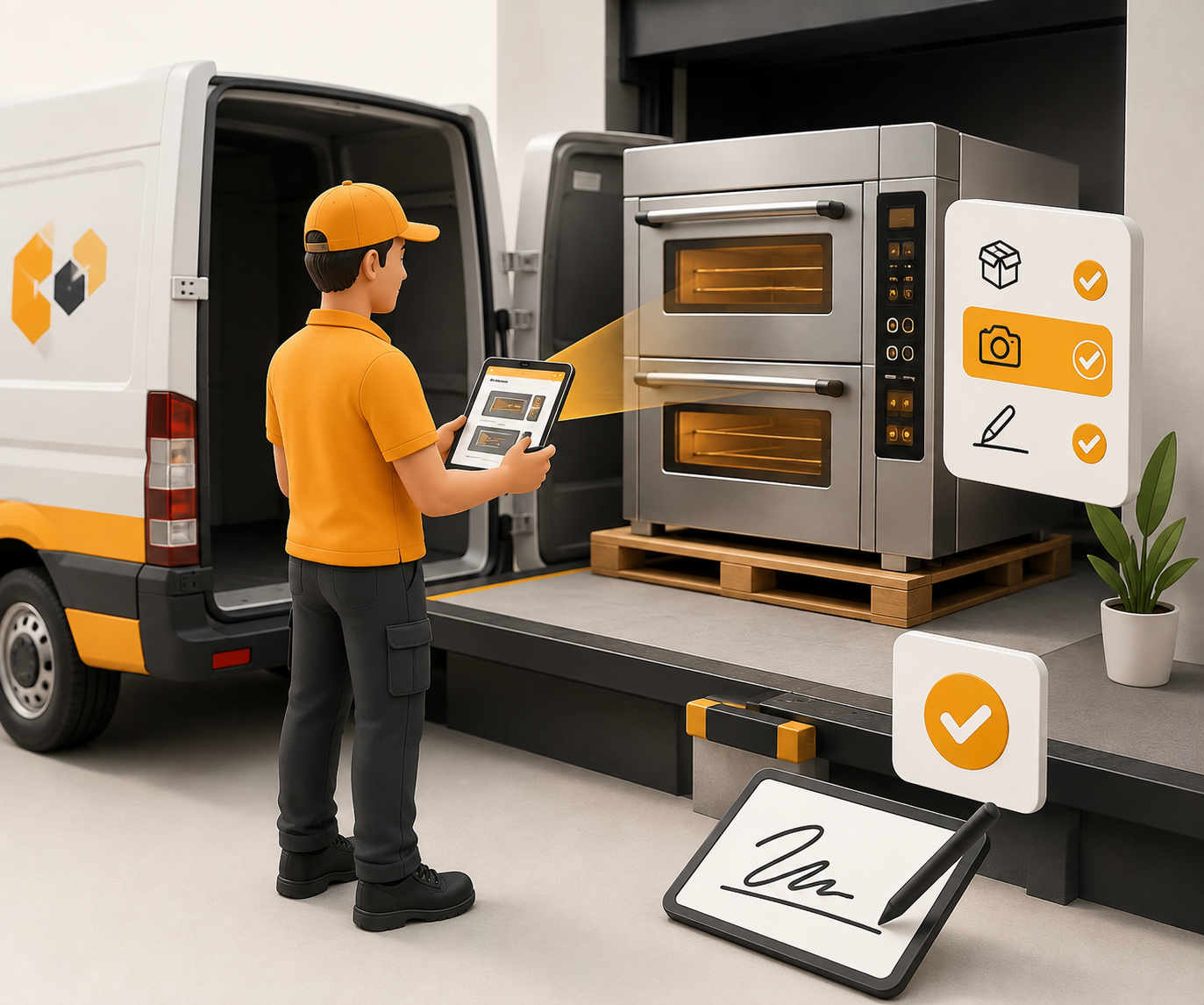
Drivers collect consigner items, capture proof, and check them into inventory.

Add, edit, and manage custom fields with auto-generated API keys, display order, and required settings so the right fields appear in the right forms.
See the whole flow, from consigner pickup through warehouse, listing, and delivery, in a personalized live demo.