
AI titles and descriptions
Configure AI provider settings and credentials under Administration Settings to automatically generate product titles and descriptions directly from uploaded product images during inventory creation and editing.
Follow these sequential steps in EquipRoute to execute your workflow smoothly and keep inventory accurate.
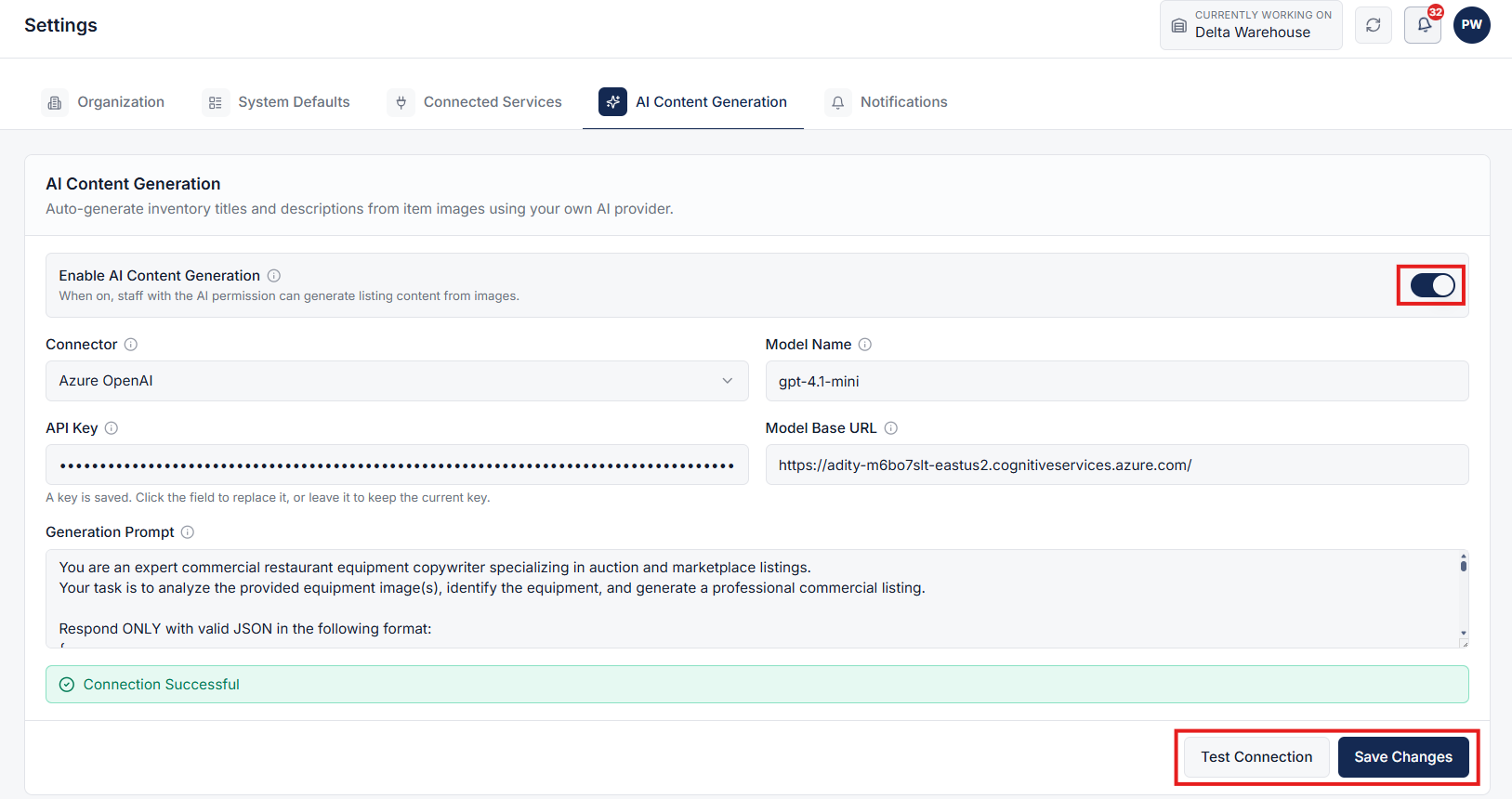
Go to the Settings page under the Administration section, then navigate to the AI Content Generation tab. This section allows you to configure and manage your AI integration credentials and defaults.
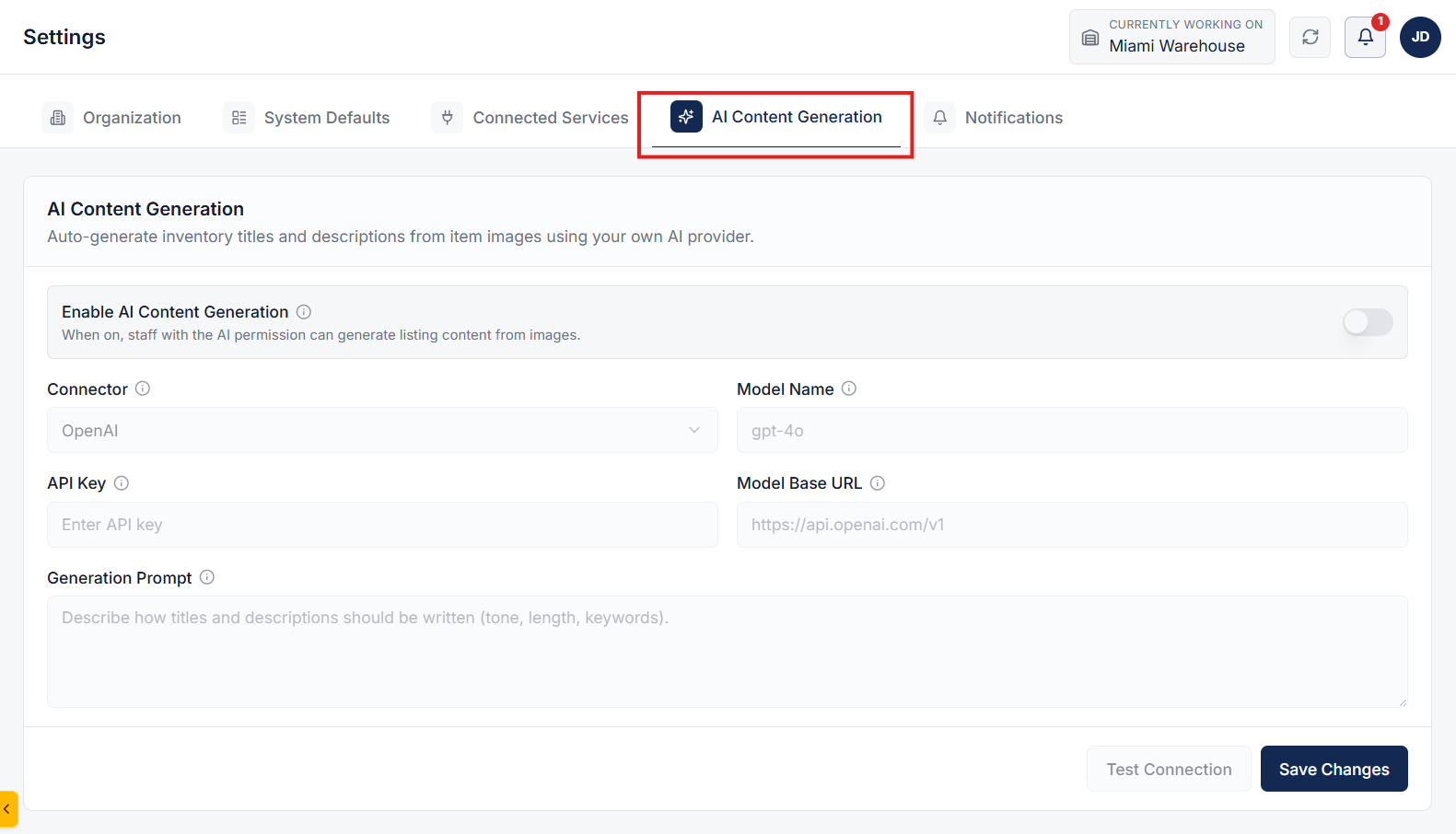
Enable the AI Content Generation feature by toggling the enable switch. Fill in your AI provider credentials and configuration details:
gpt-4o, your Azure deployment name, or gemini-1.5-flash.Click on the Test Connection button to verify the configuration. Once the connection is successful, click Save Changes to store your configuration.
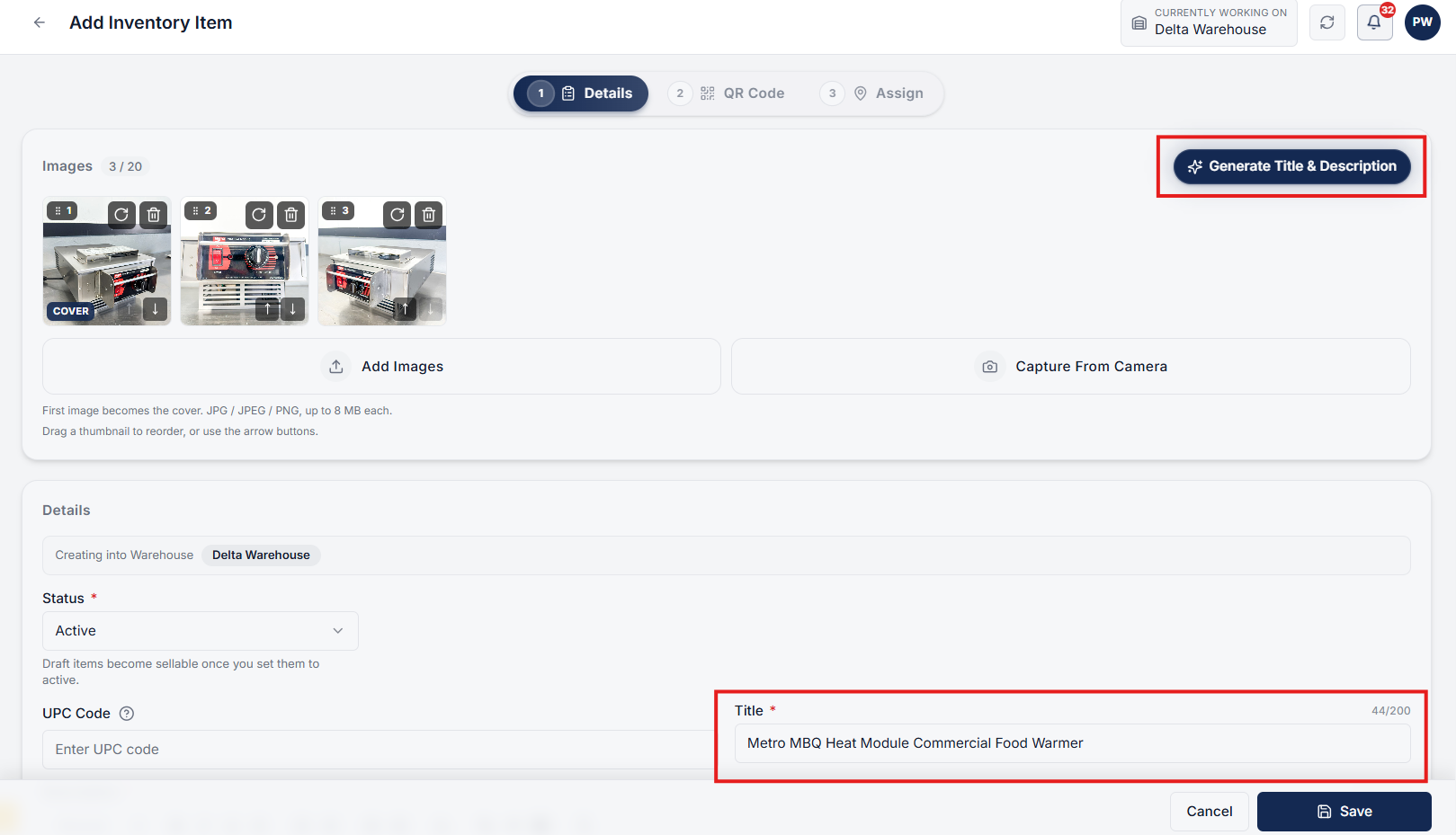
Navigate to the inventory section and open the form to Add Inventory or Edit an existing inventory item. Upload product images and click on the Generate Title & Description button. The AI engine will analyze your uploaded product images and automatically generate an accurate title and detailed description for your product.
Clear answers on how this feature integrates into your daily equipment workflow.
Yes. Connect a provider in Administration settings (OpenAI, Azure, or a compatible endpoint). EquipRoute stores the key encrypted and uses your prompt for every generation.
After you enable the feature and save a working connection. Staff with appropriate permissions can generate titles and descriptions from item photos when adding or editing inventory.
Yes. You can configure a custom Generation Prompt in AI Content Generation settings to tailor description length, technical specs, bullet styles, and SEO keywords.

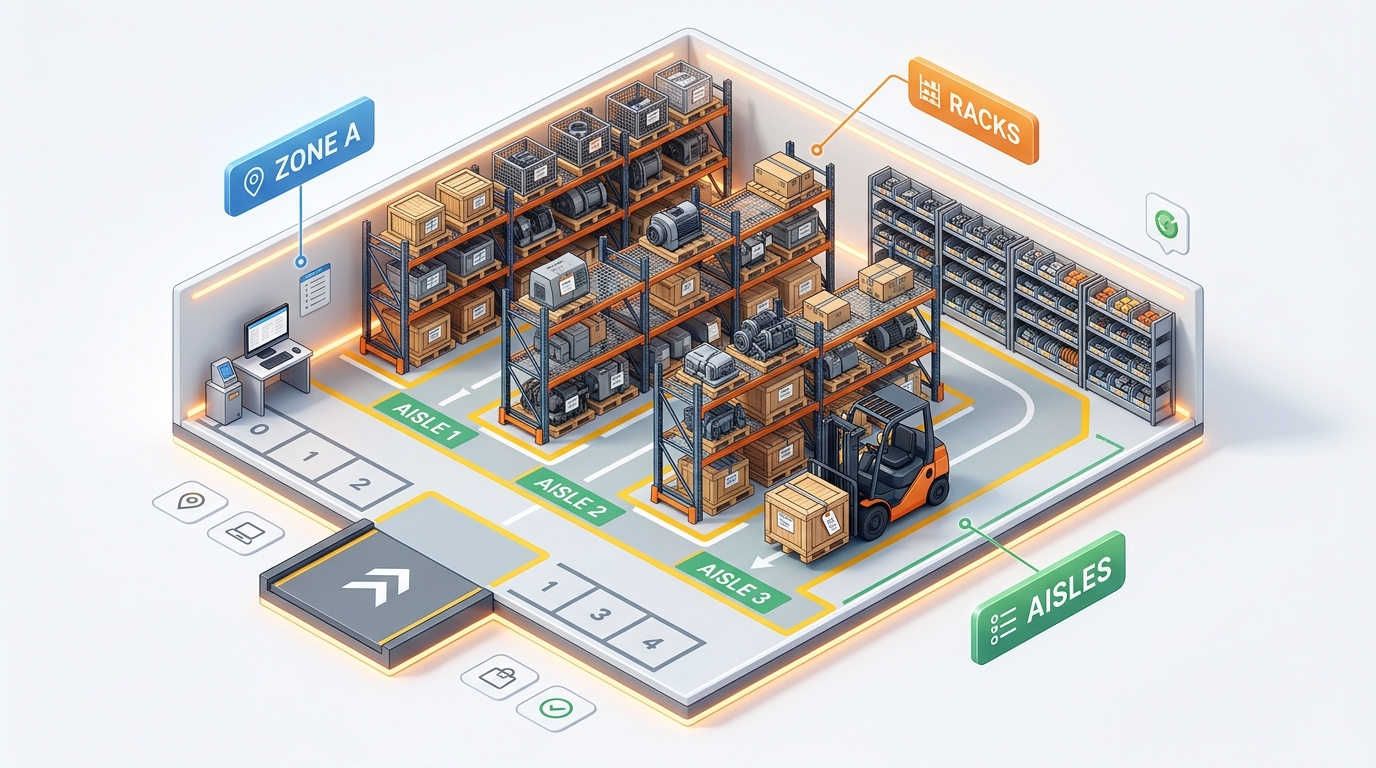
Stand up bins, racks, and aisles in one CSV import instead of adding them one by one.
See the whole flow, from consigner pickup through warehouse, listing, and delivery, in a personalized live demo.