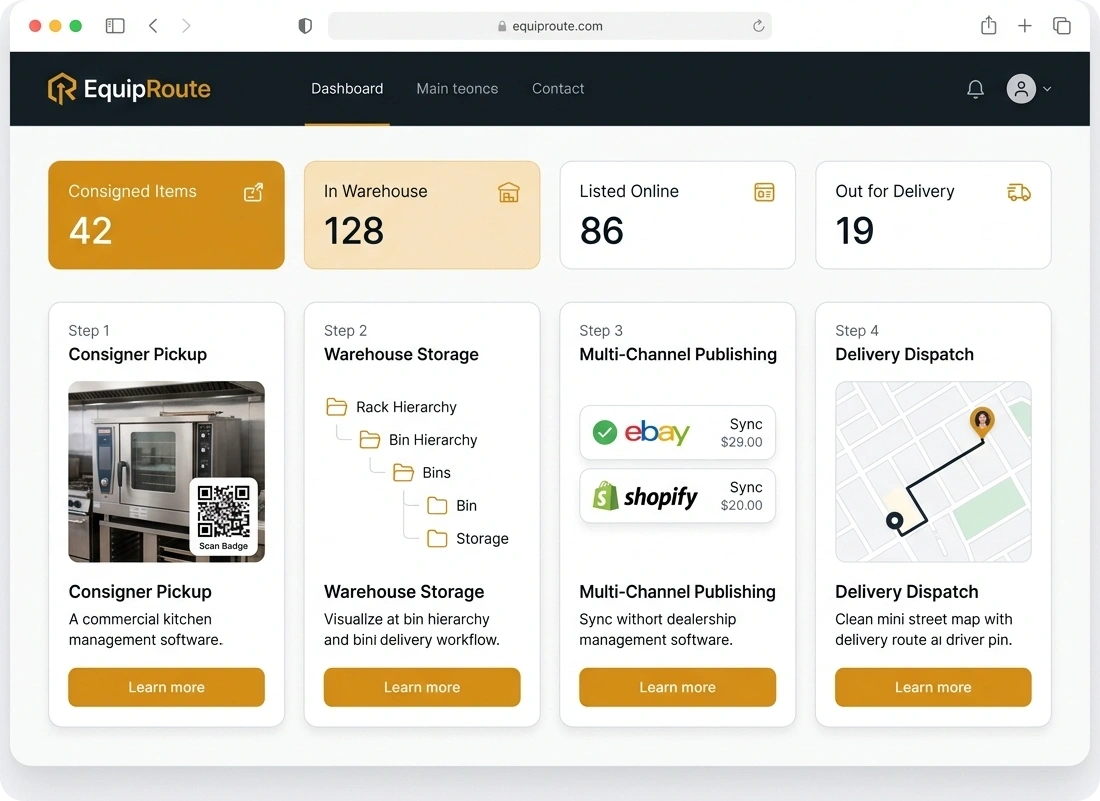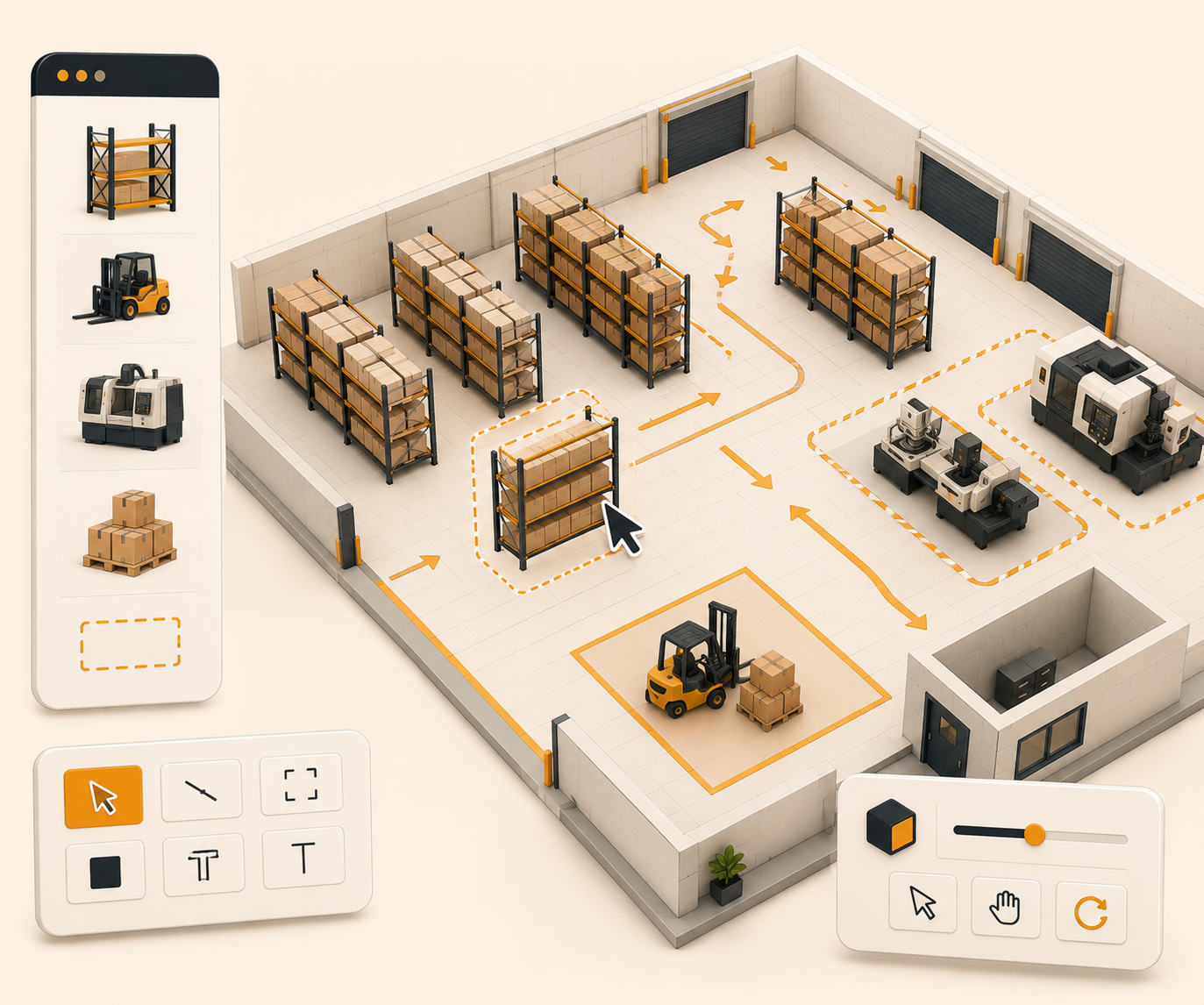

Warehouse reports
Open inventory reports to see what is on hand, still draft, damaged, unsold, unlisted, or missing a location, then click through to the items.
Follow these sequential steps in EquipRoute to execute your workflow smoothly and keep inventory accurate.
Go to the Dashboard from the Home section in the main navigation menu, then click on the Inventory tab.
This tab displays detailed warehouse reports and real-time inventory metrics across your facility.
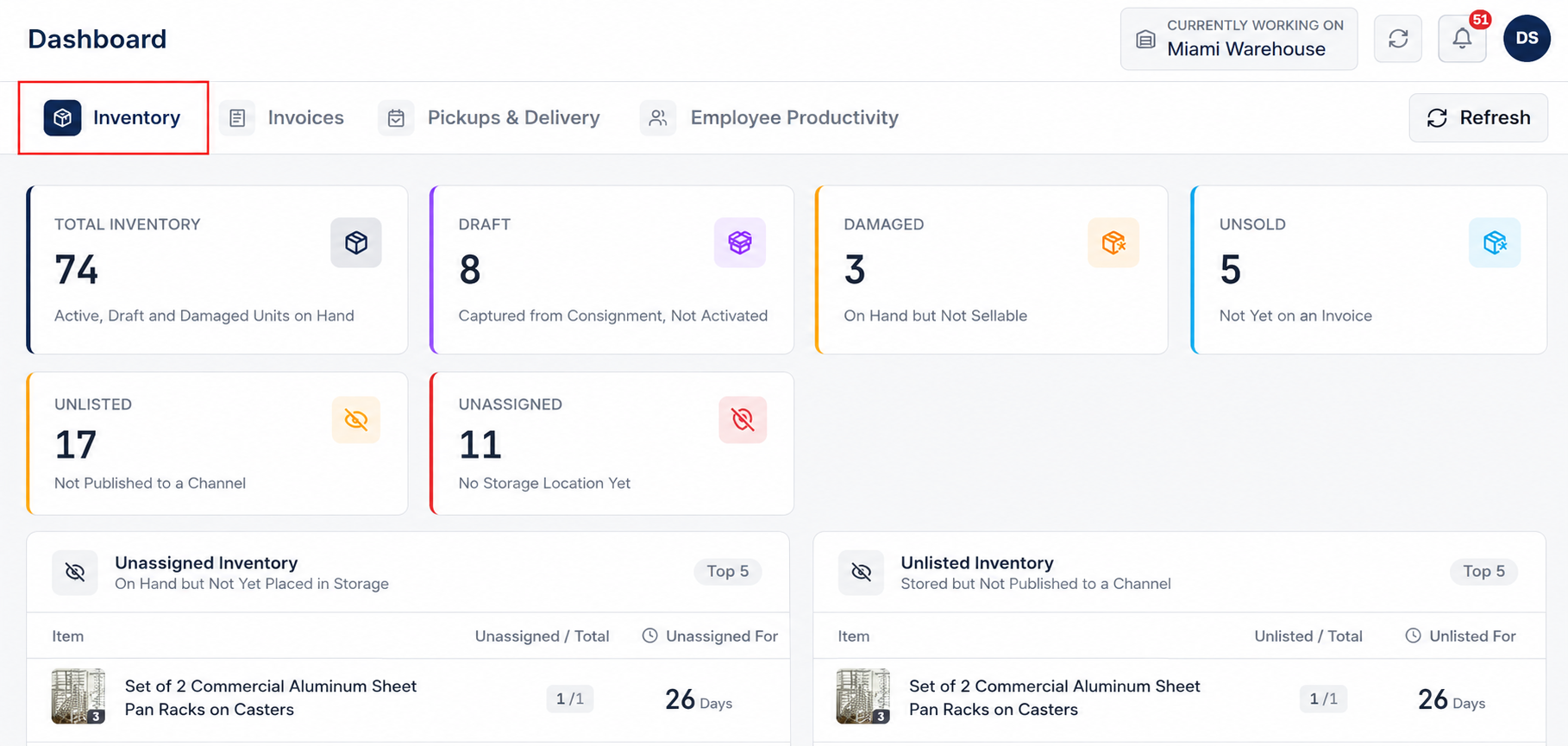
In the inventory reporting view, monitor high-level inventory counts and status summaries:
Analyze targeted reports for items requiring operational attention:
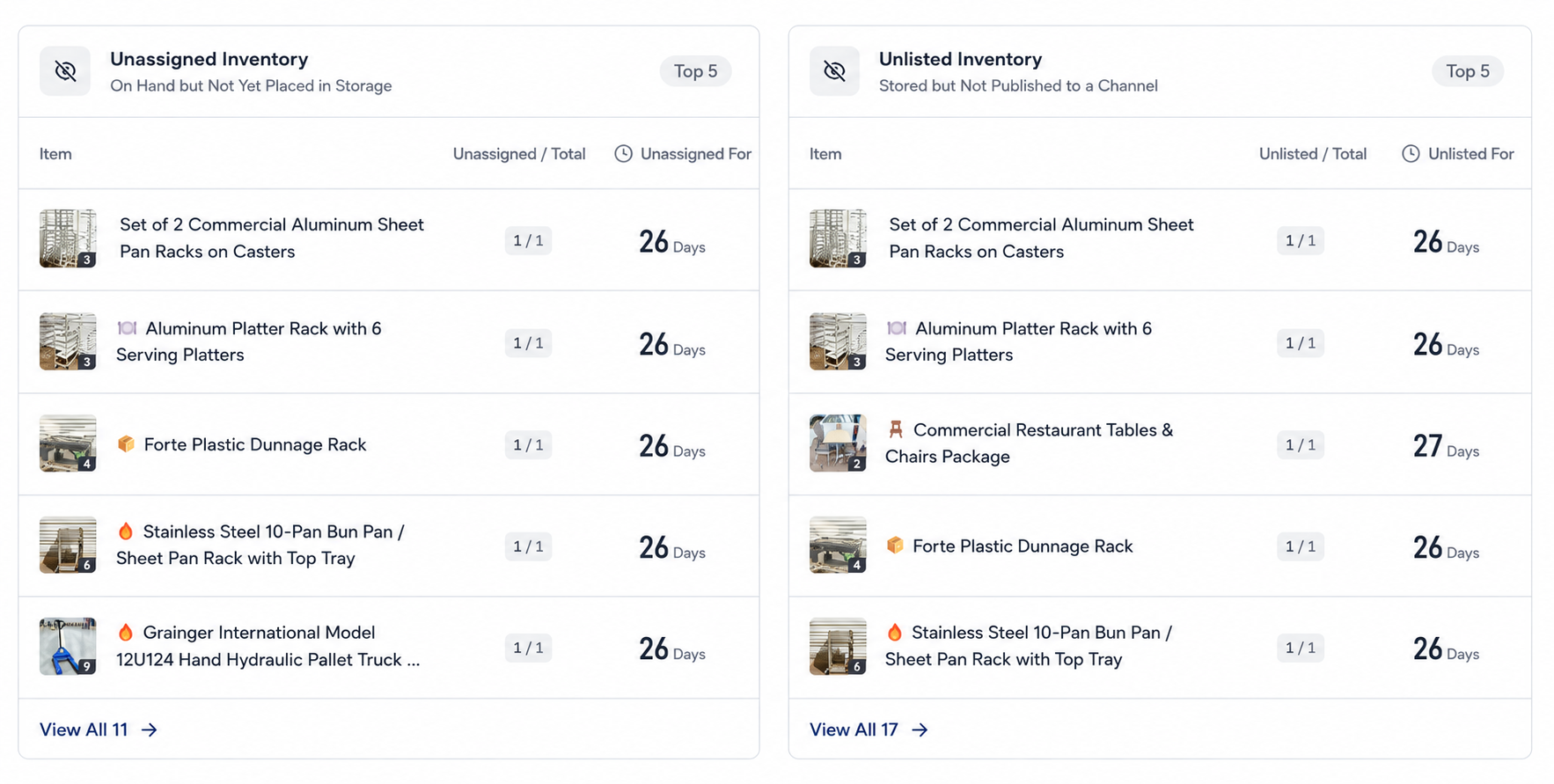
Click on any metric card, count indicator, or status report section to open the corresponding list of items or detailed count breakdowns. This allows warehouse managers to drill down instantly and resolve unassigned or unlisted inventory exceptions.
Clear answers on how this feature integrates into your daily equipment workflow.
Counts for total inventory, draft, damaged, unsold, unlisted, and unassigned items, plus lists of items that still need a location or a listing.
Yes. Click a metric card to open the matching list. Assign a location or list the item from there.

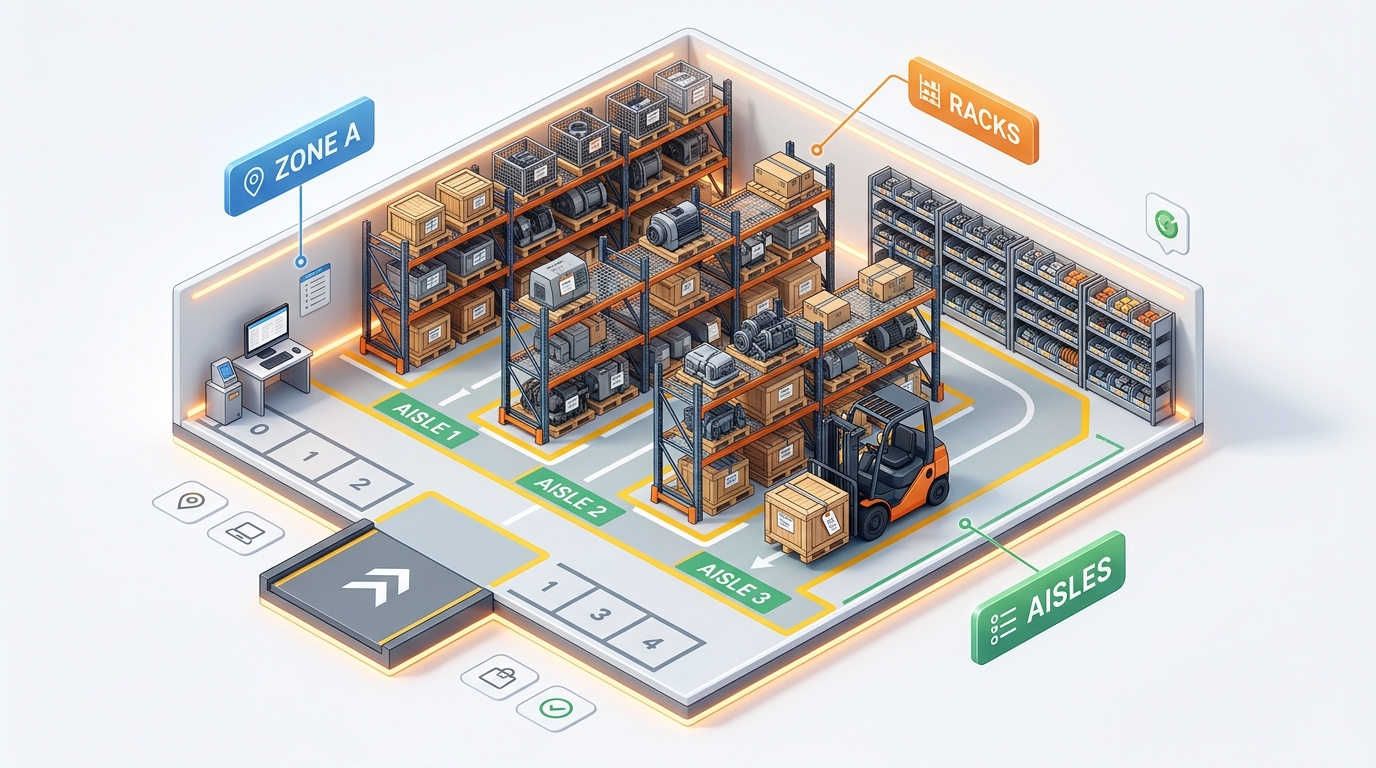
Stand up bins, racks, and aisles in one CSV import instead of adding them one by one.
See the whole flow, from consigner pickup through warehouse, listing, and delivery, in a personalized live demo.