
Custom storage layouts
Set up storage structures that reflect your physical warehouse layout, naming rules, and operating needs.
Follow these sequential steps in EquipRoute to execute your workflow smoothly and keep inventory accurate.
Navigate to the Warehouse section from the menu. Click on the Add Warehouse button to create a new warehouse.
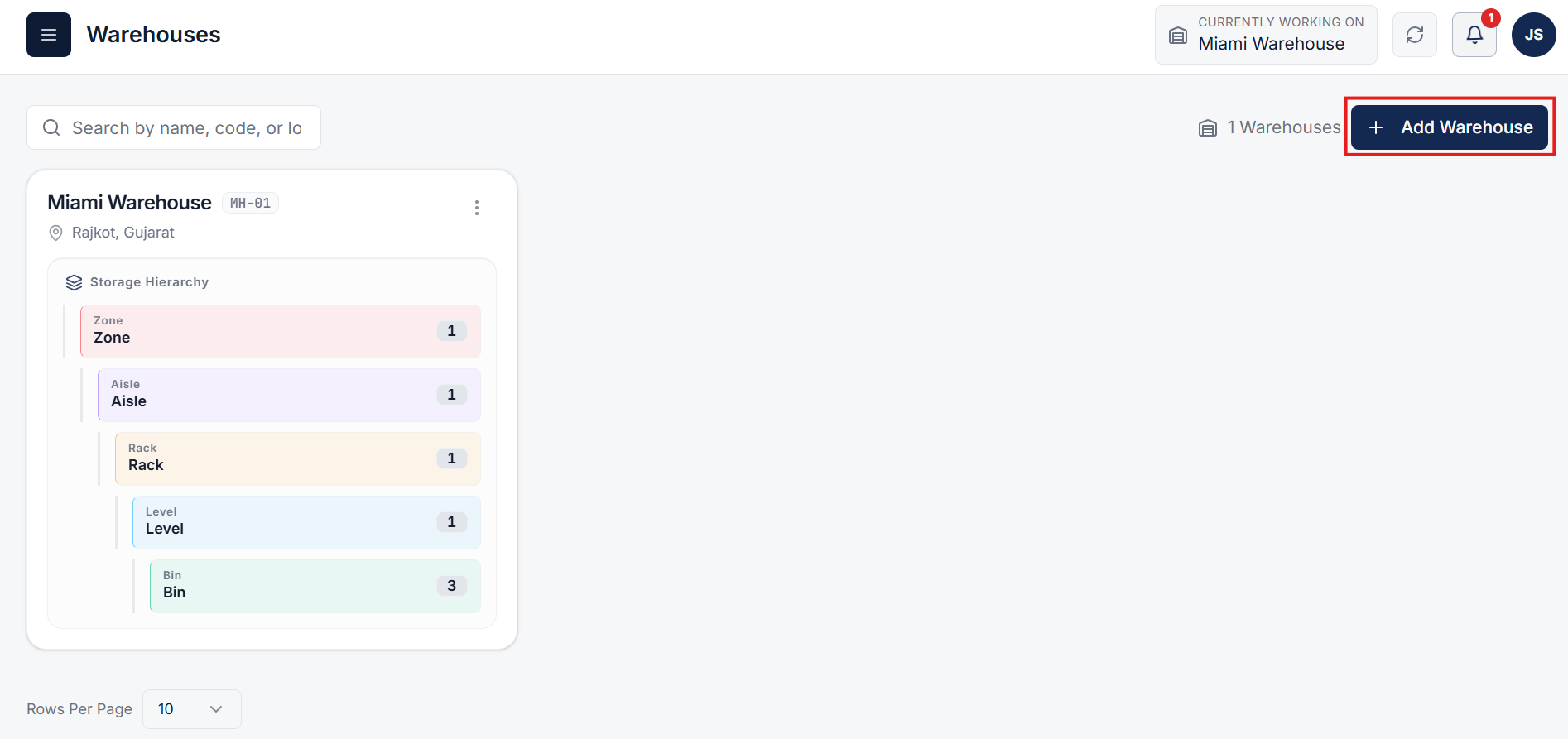
A popup will appear where you need to enter the required warehouse information such as name, location, and other operational settings. Ensure all necessary details are filled before proceeding.
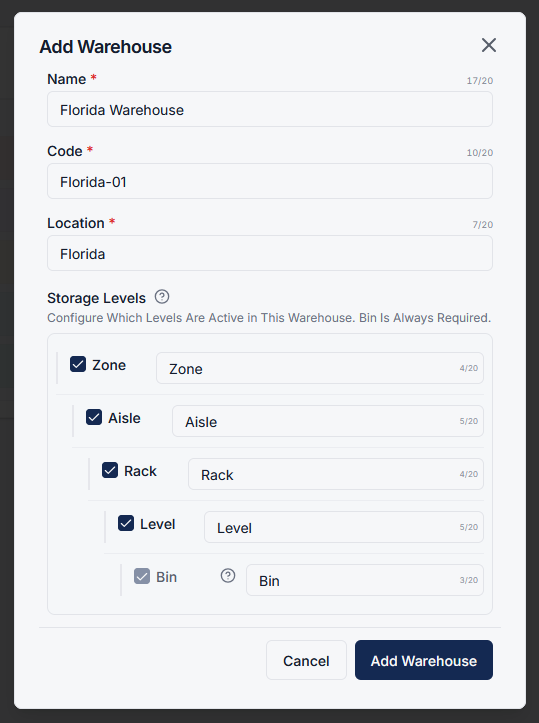
In the Storage Levels section, you can customize how storage is structured for this warehouse:
Example: Rename Aisle to Section, or remove Level if you do not use multi-tier racking.
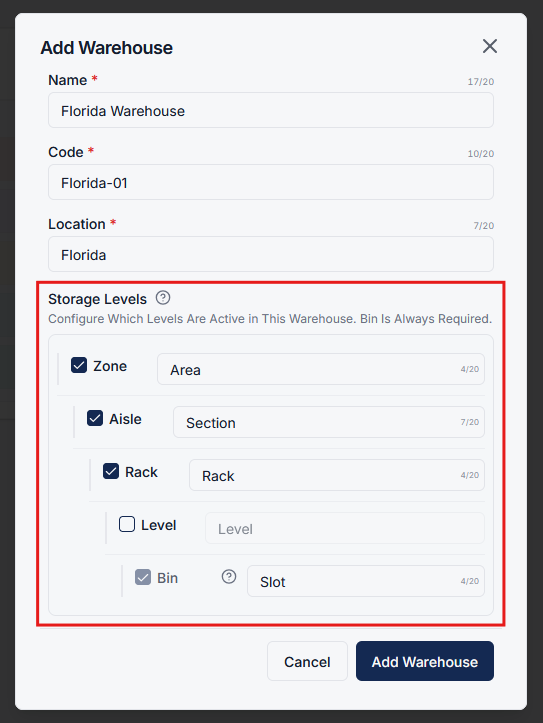
After configuring storage levels, click on Add Warehouse. The new warehouse will now use your customized storage structure, tailored to your physical floor operations.
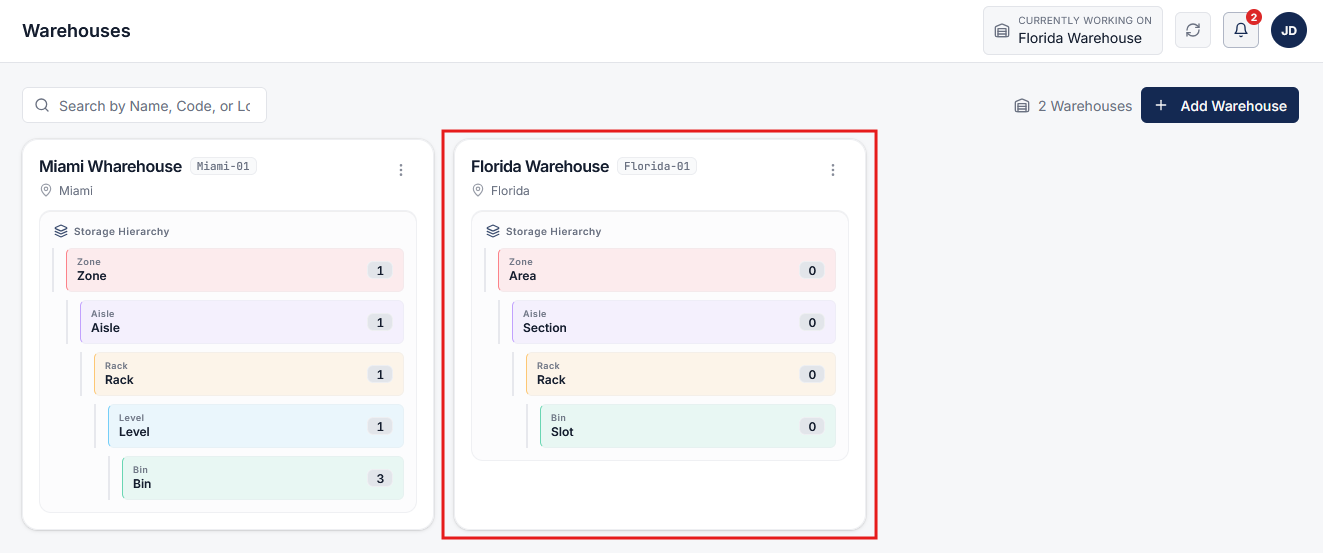
Custom storage management gives you full operational flexibility:
This ensures your warehouse setup is flexible, efficient, and perfectly aligned with your business processes.
Clear answers on how this feature integrates into your daily equipment workflow.
Yes. Each level has a name you can change. Call Aisle a Section, or Bin a Slot, so the system matches how the floor already talks.
Yes. Disable Zone, Aisle, Rack, or Level if you do not use them. Bin stays required so every item still has a home.
Yes. Each warehouse profile can have its own independent storage structure, enabling simple single-tier yards alongside multi-tier distribution centers.

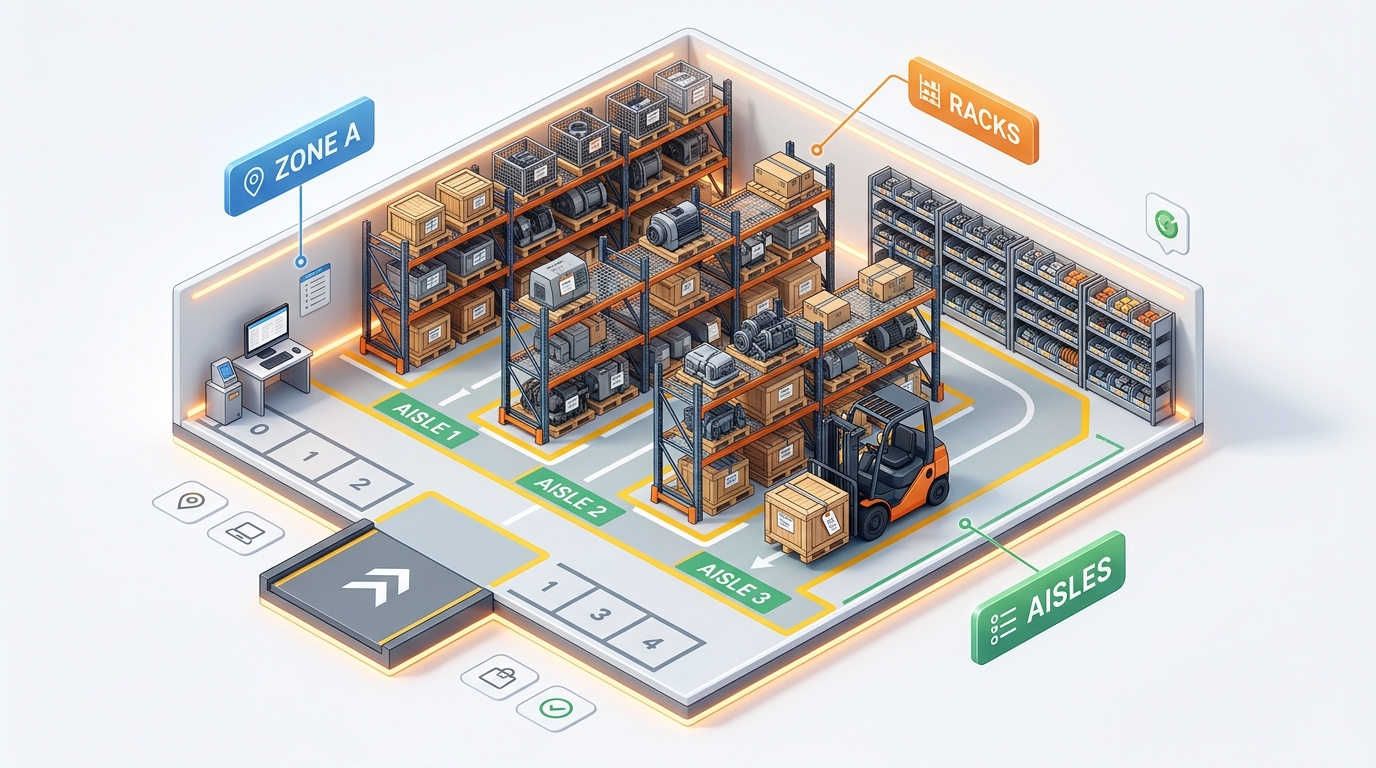
Stand up bins, racks, and aisles in one CSV import instead of adding them one by one.
See the whole flow, from consigner pickup through warehouse, listing, and delivery, in a personalized live demo.