
Page permissions
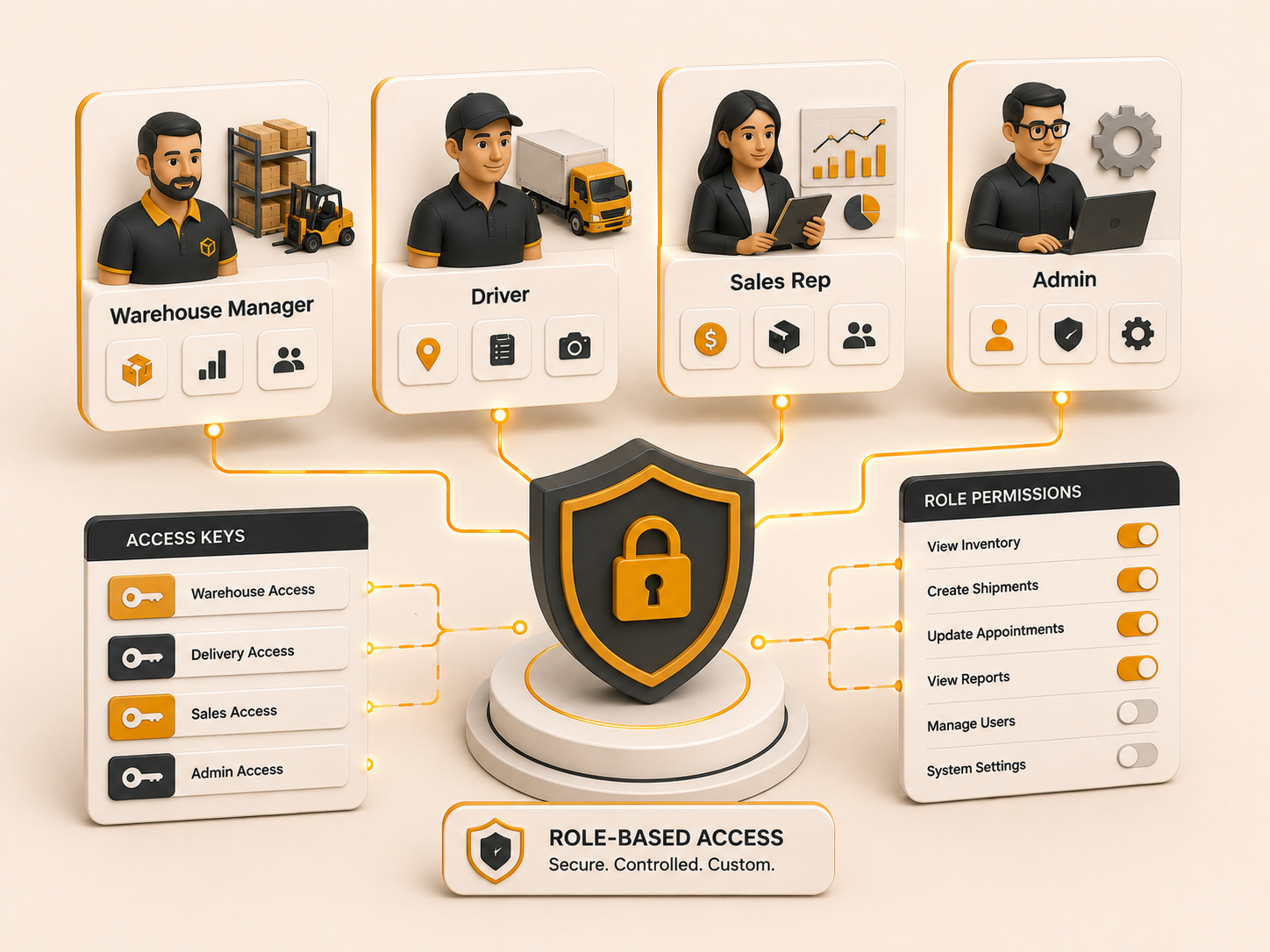
Set page permissions on a role, assign that role to staff, and EquipRoute shows each user only the pages and actions they can use.
Follow these sequential steps in EquipRoute to execute your workflow smoothly and keep inventory accurate.
Navigate to Staff under Administration from the menu. Here, you can manage your team and assign roles with specific page permissions.
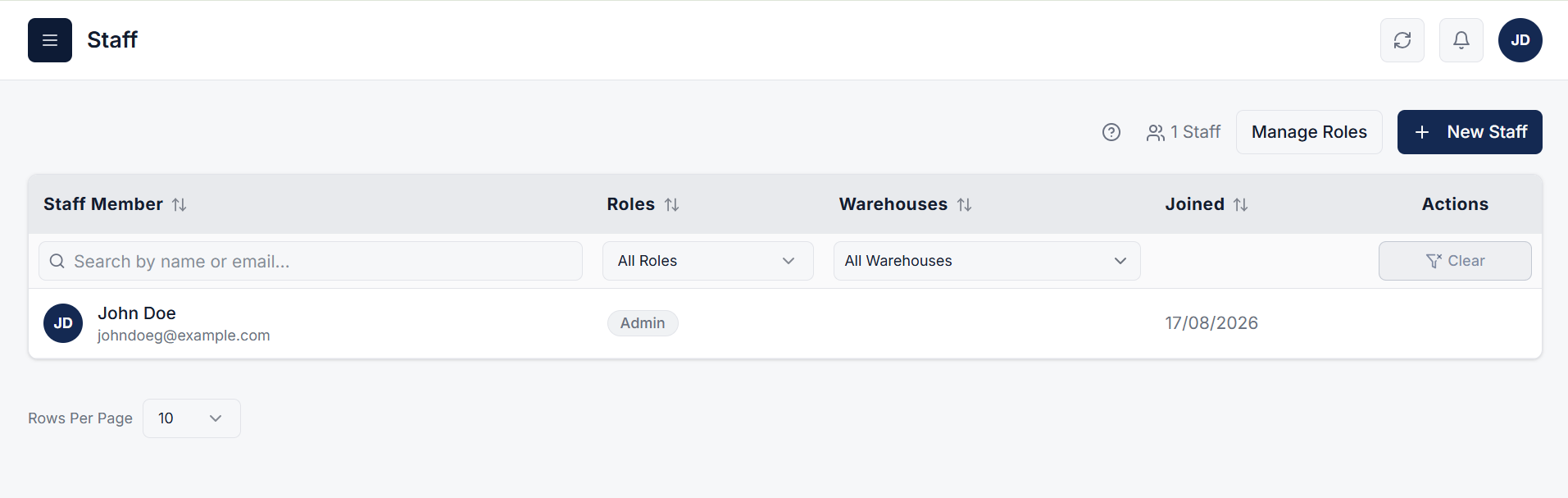
While creating or editing a role, assign Page Permissions based on access requirements. For example, for a Driver role, you can grant access to specific pages like:
You can control actions such as View, Add, Edit, and Delete. This ensures the role only has access to relevant sections of the system.
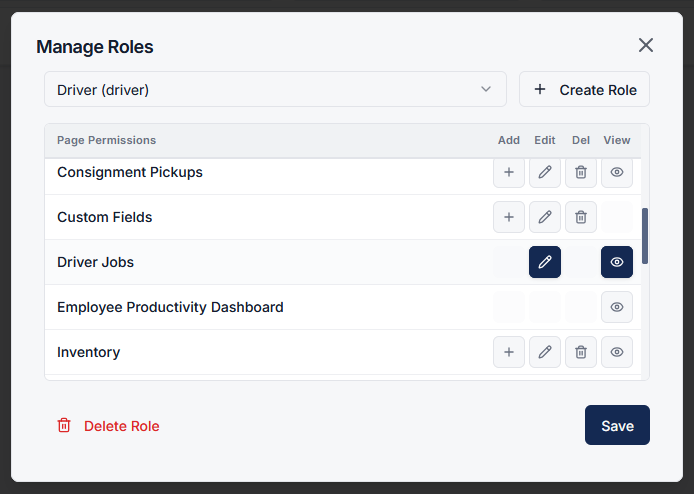
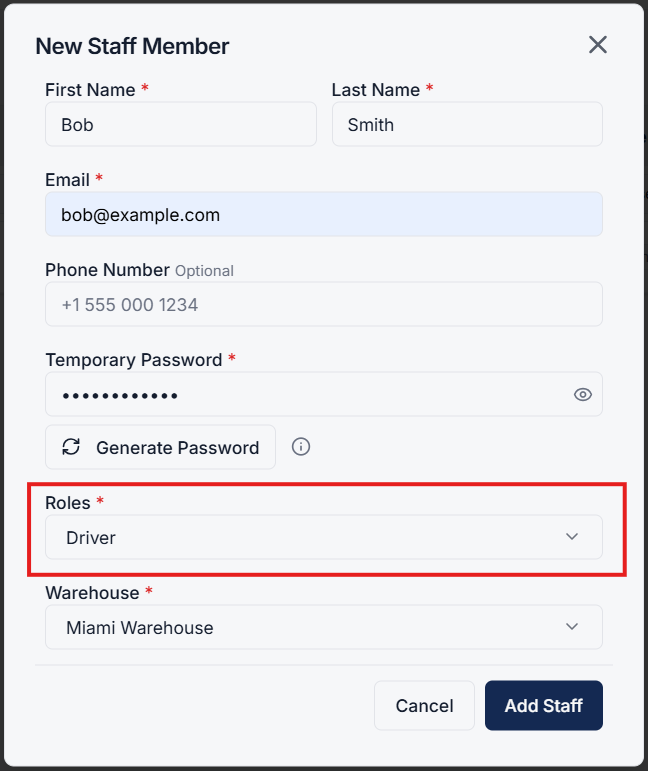
Create a new staff member (or edit an existing one) and assign the Driver role to them. Once assigned, the staff member inherits all the permissions defined in that role.
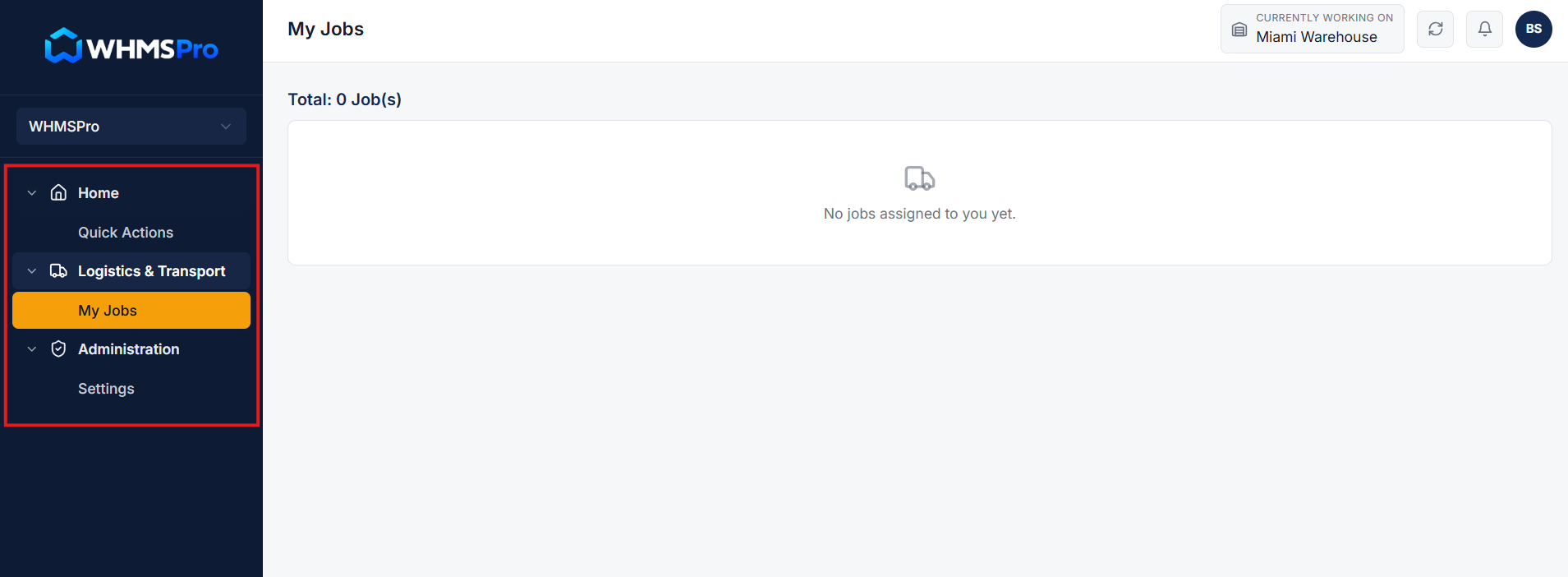
When the staff member logs in, they will only see and access the pages they have permission for:
This ensures controlled access and prevents unauthorized actions.
Page-based permissions help you:
This results in a safer and more efficient workflow across your system.
Clear answers on how this feature integrates into your daily equipment workflow.
Each role lists pages and actions: View, Add, Edit, and Delete. Staff assigned that role only see those pages. A driver can open Driver Jobs without seeing inventory or administration screens.
Open Staff under Administration, then Manage Roles. Pick the role, set page permissions, and save. Everyone with that role gets the new access the next time they log in.

Enable in-app and mobile push alerts for the warehouse events your team needs.

See the whole flow, from consigner pickup through warehouse, listing, and delivery, in a personalized live demo.