
Custom roles & permissions
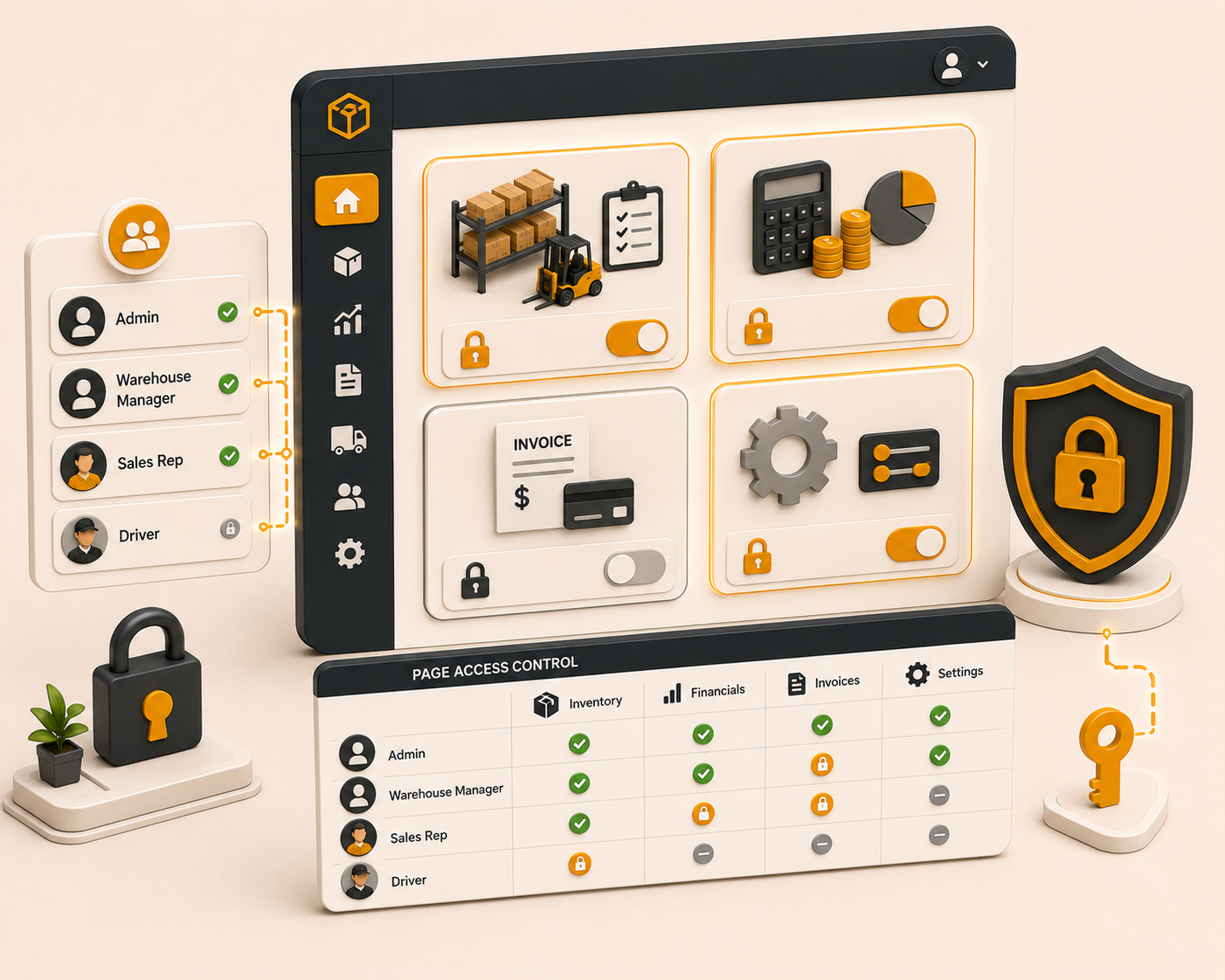
Set up role-based access in a few clear steps: create roles, define page-level permissions, assign roles to staff, and manage defaults as your team grows.
Follow these sequential steps in EquipRoute to execute your workflow smoothly and keep inventory accurate.
Navigate to Staff under Administration from the menu. Here, you can manage your team, roles, and permissions.
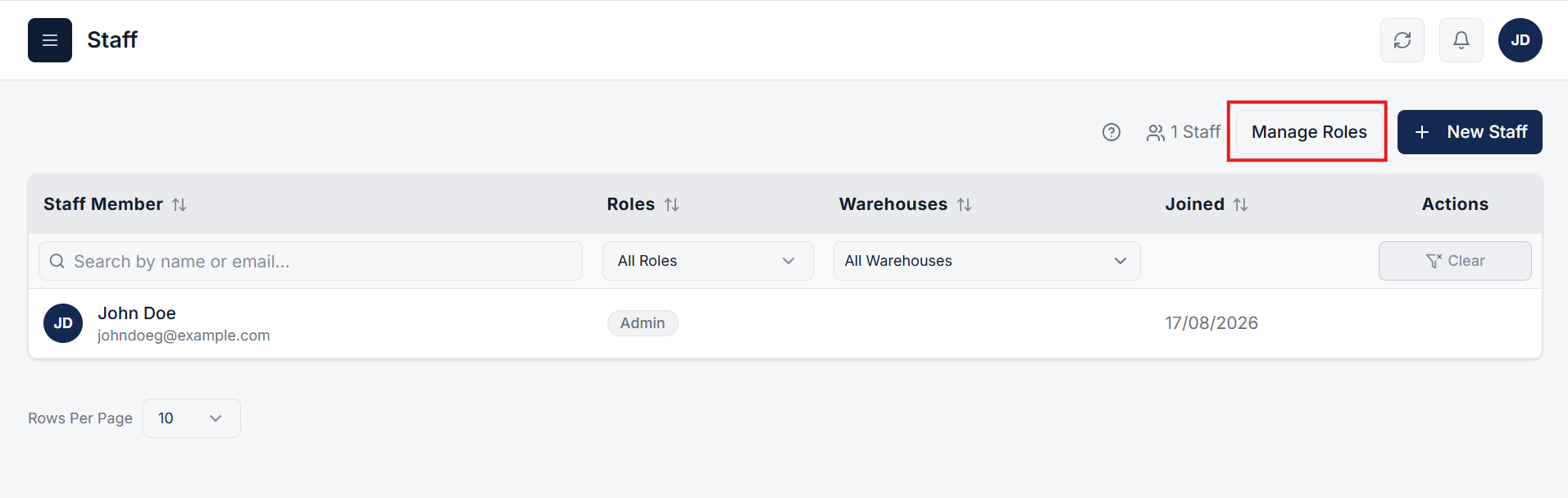
Click on the Manage Role button to open the management popup. In this popup, you can view, add, edit, or delete existing roles and configure their permissions (Add, Edit, Delete, View).
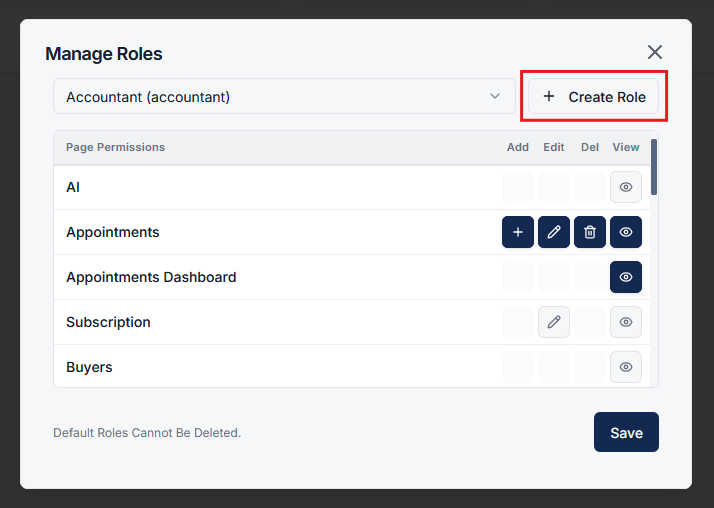
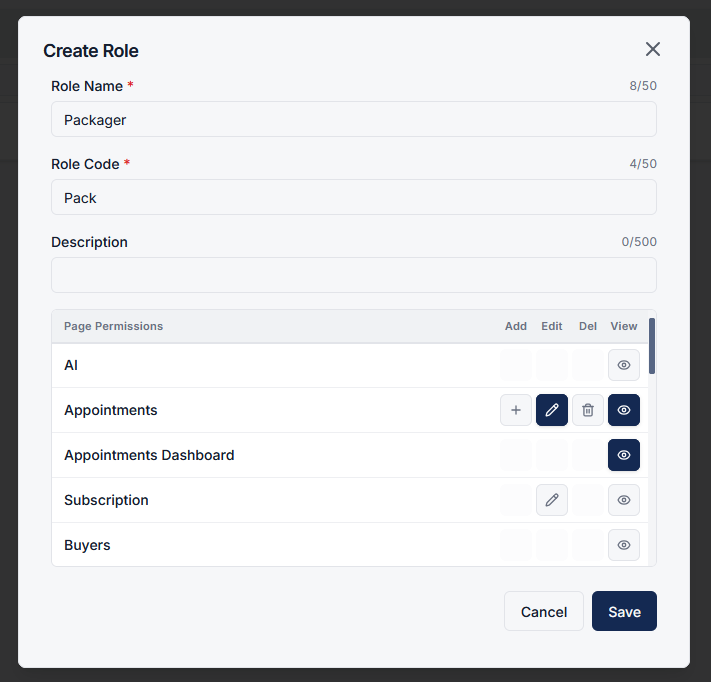
To create a new role, click on the Create Role button inside the Manage Role popup. Configure the following details:
Click Save to create the new role.
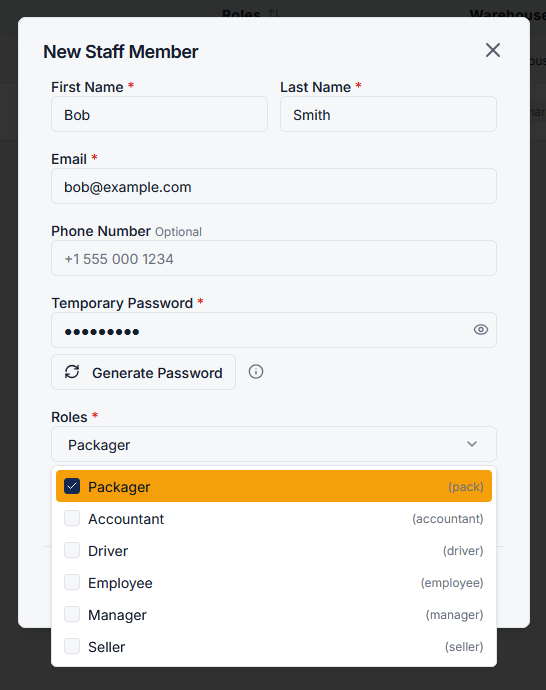
When adding or managing staff members, your newly created role will now be available in the role selection dropdown. Select it to grant the configured access to the staff member.
Custom roles and permissions allow you to define exactly who can access and perform actions within the system. This ensures better security, accountability, and streamlined operations across your team.
Clear answers on how this feature integrates into your daily equipment workflow.
Create a role, set Add, Edit, Delete, and View permissions per page, then assign that role to staff. Each person only gets the access you configured.
Yes. Open Manage Roles to edit permissions or delete a custom role. Default roles cannot be deleted. Staff keep the access of the role you assigned.
Yes. You can toggle View permissions while unchecking Add, Edit, and Delete for any specific page or system module.

Enable in-app and mobile push alerts for the warehouse events your team needs.
See the whole flow, from consigner pickup through warehouse, listing, and delivery, in a personalized live demo.