
Manage appointments
Build templates for pickup and delivery windows. Set daily, weekly, or monthly recurrence, cap buyers per slot, and publish the schedule they can book.
Follow these sequential steps in EquipRoute to execute your workflow smoothly and keep inventory accurate.
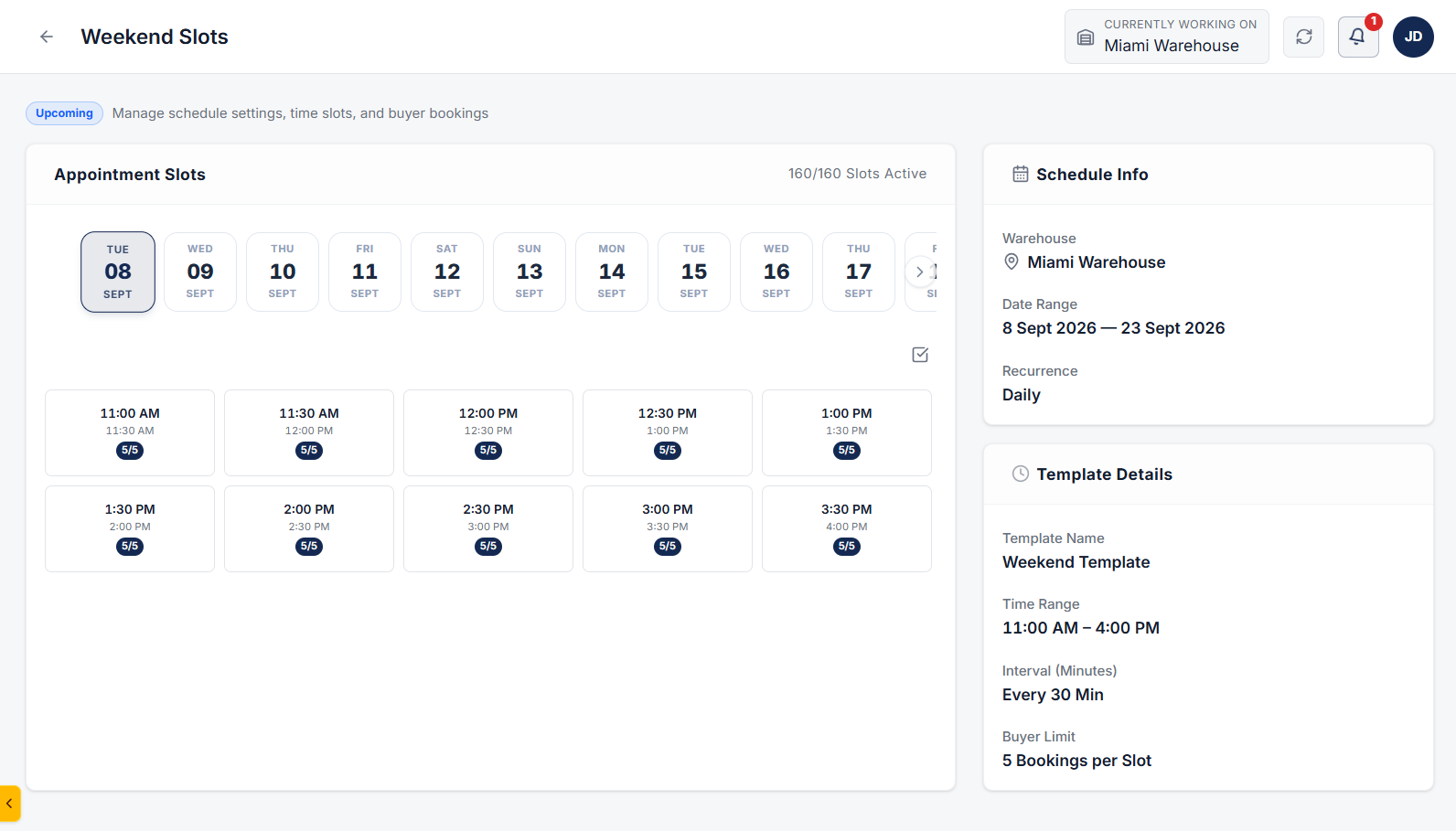
Go to the Manage Appointments page located under the Administration section from the main navigation menu. Here on this page, you can manage all your appointments for both pickup and delivery.
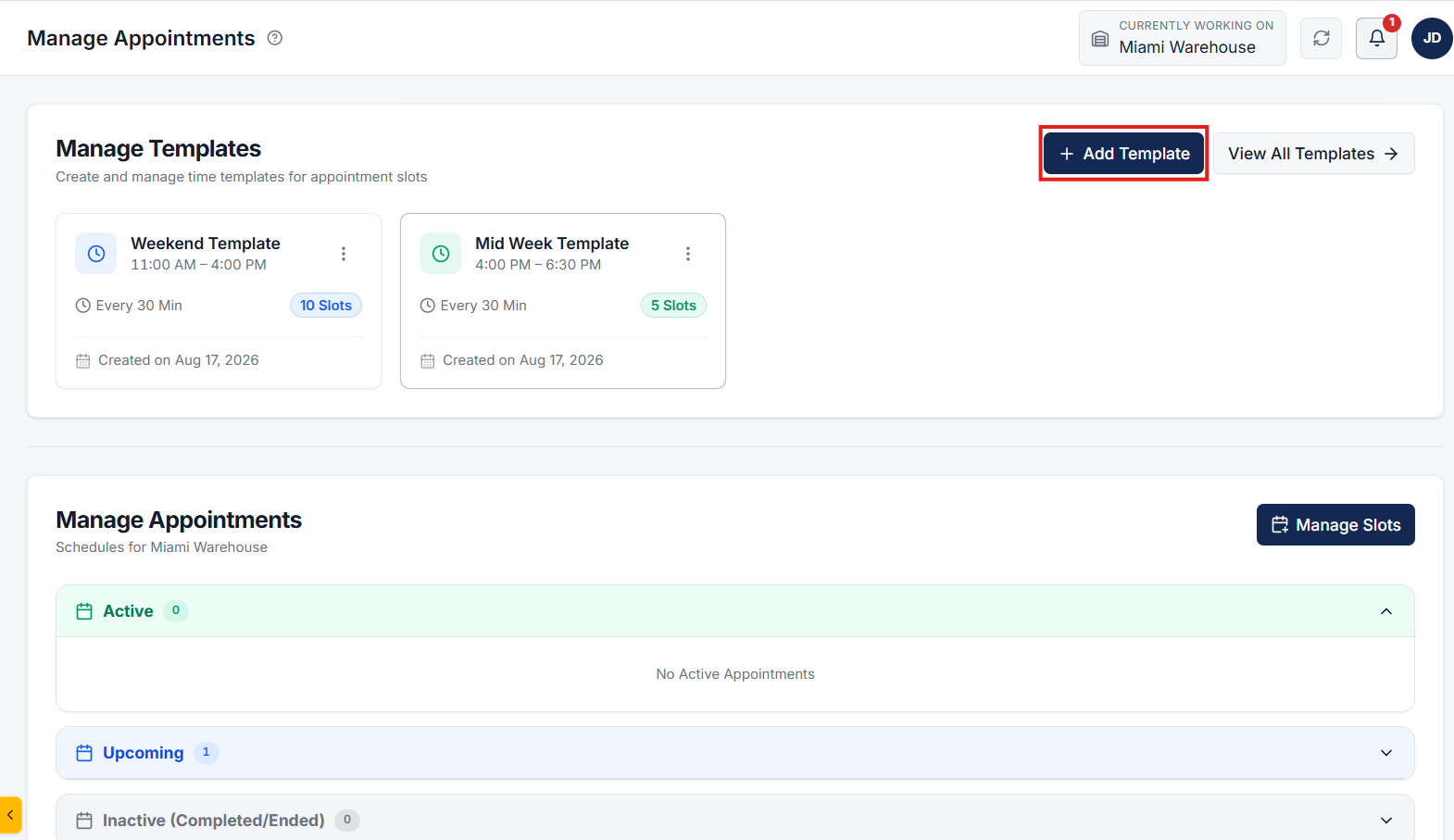
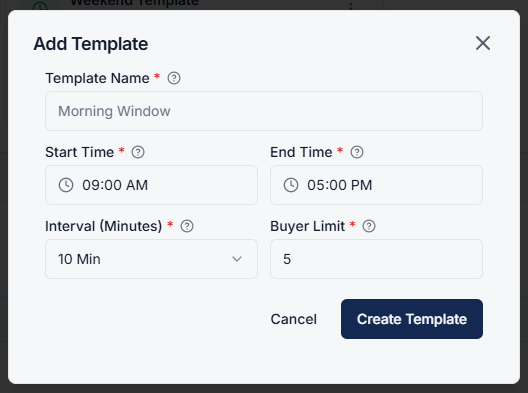
Click on the Add Template button. A popup modal will appear on the screen. Fill in the template details:
After entering all details, click on the Create Template button to save the new template.
Click on the Manage Slot button. A popup modal will appear on the screen. Configure the appointment slot schedule:
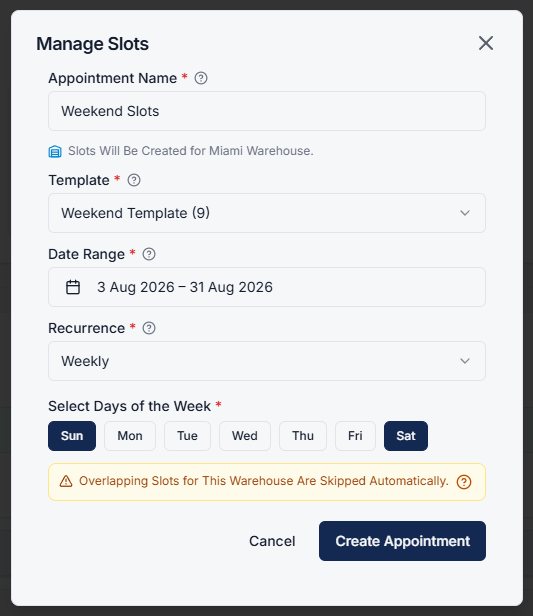
Click on the Create Appointment button. Your pickup appointment slots are now generated, allowing buyers to select and book their preferred convenient time slot.
Click on the 3 dots and select View slot details to view and manage slots of the appointment schedule.
Clear answers on how this feature integrates into your daily equipment workflow.
A template sets the window: start time, end time, slot interval, and how many buyers can book each slot. You reuse it when you generate a schedule.
Yes. After you pick a template and date range, choose daily, weekly (specific days), or monthly recurrence, then create the appointment so buyers can book.

Enable self-service or scheduled customer order pickups at warehouse facilities.


Driver delivery job management, notification alerts, status tracking, and PIN and signature delivery verification.


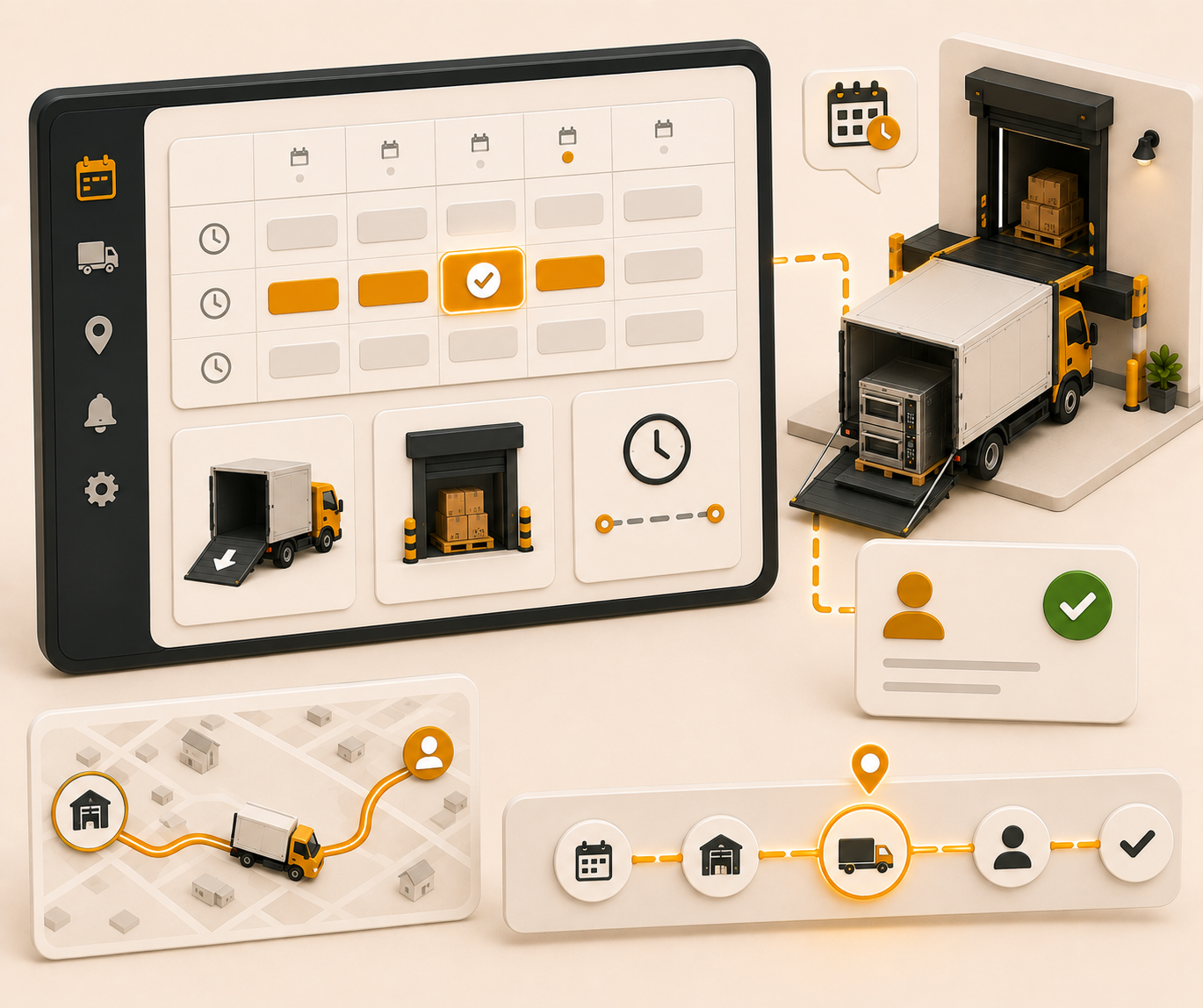
Book delivery slots, assign the driver, and keep dock jobs on one calendar.
See the whole flow, from consigner pickup through warehouse, listing, and delivery, in a personalized live demo.