
Delivery appointments
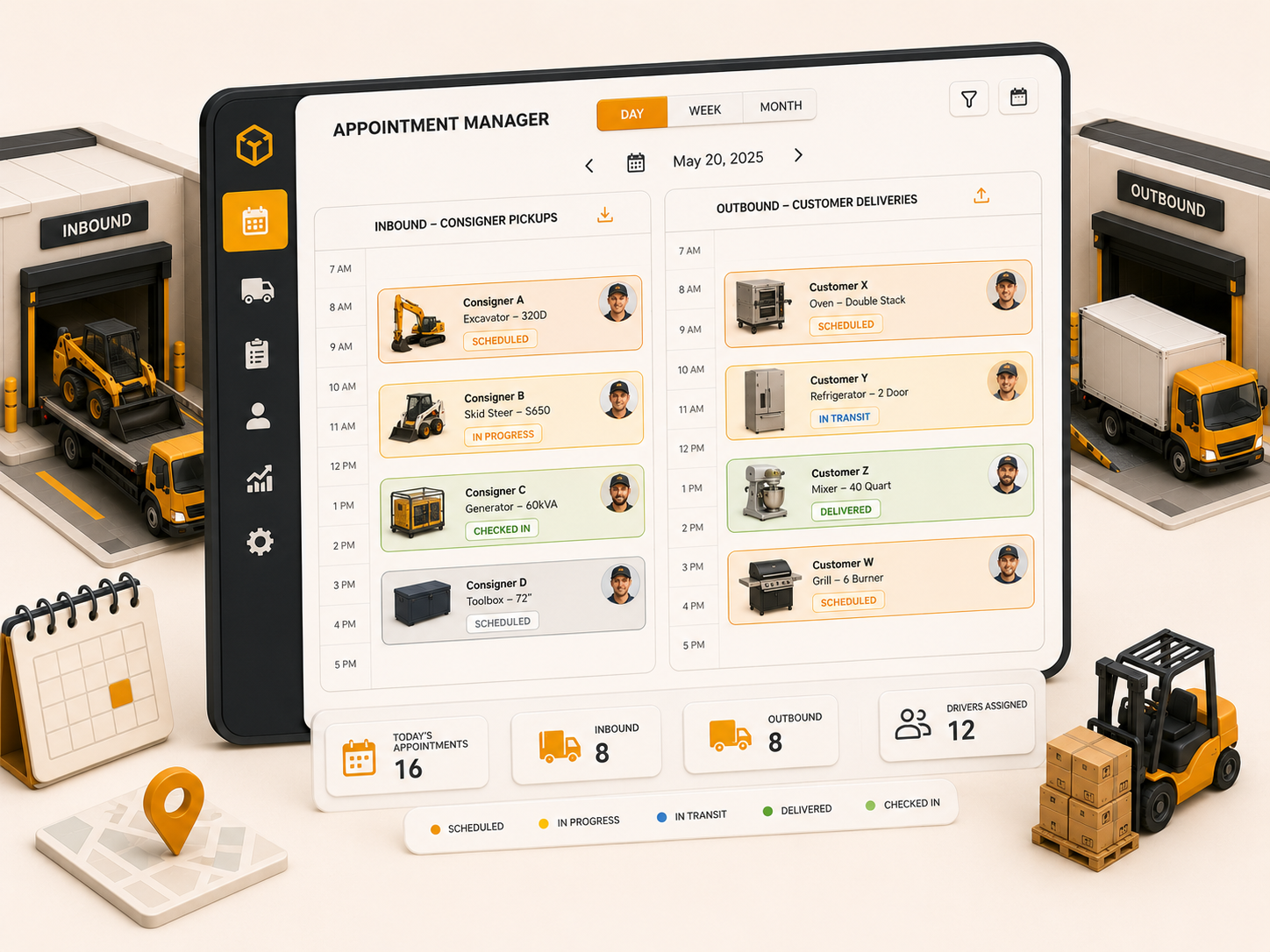
When a buyer books a slot, it lands on Delivery Appointments. Create the delivery, pick the driver, and set the time so the dock and the job stay aligned.
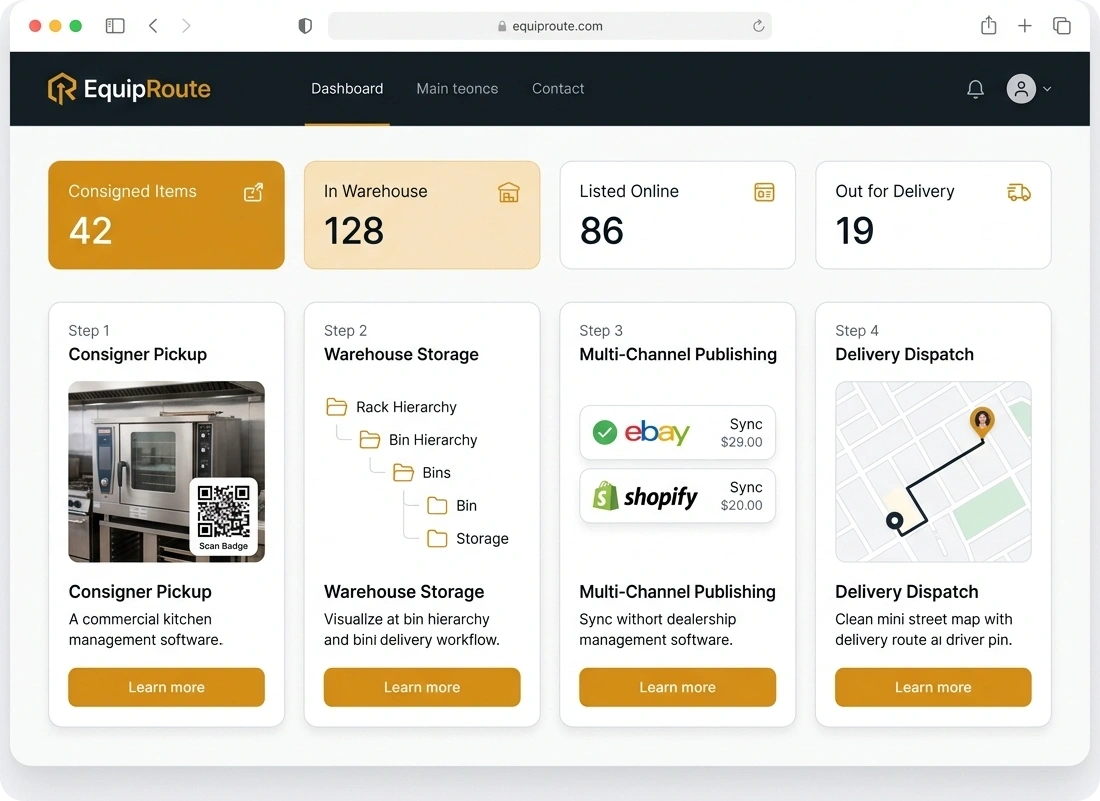
Follow these sequential steps in EquipRoute to execute your workflow smoothly and keep inventory accurate.
Before assigning items for delivery, ensure that the invoice has been created and packaging is completed for all items included in the invoice. Once these prerequisites are met, the items become ready to be assigned for delivery.
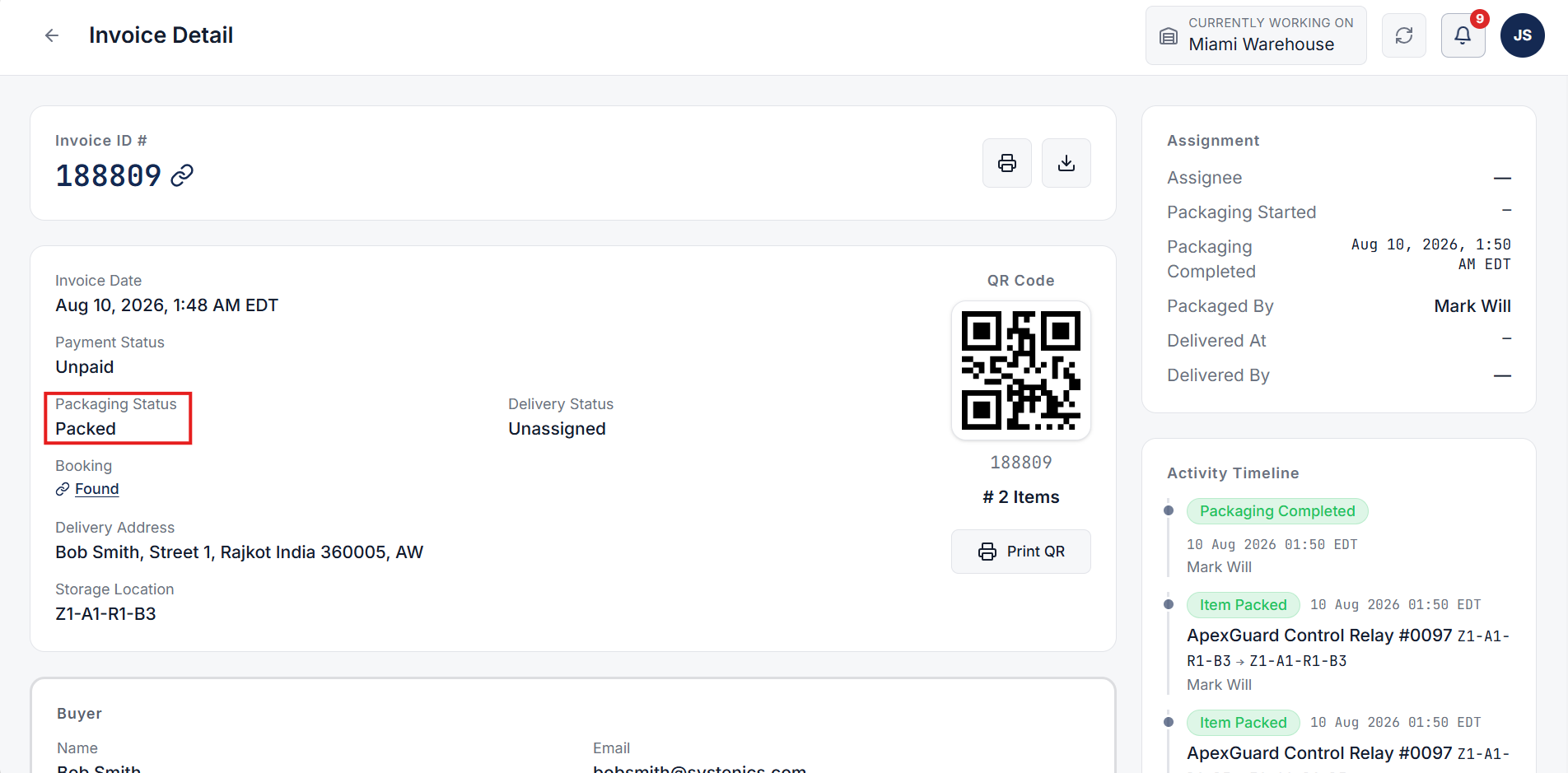
When a buyer schedules a delivery appointment, it will appear on the Delivery Appointments page. From the main navigation menu, go to the Delivery Appointments page to view all scheduled appointment records.
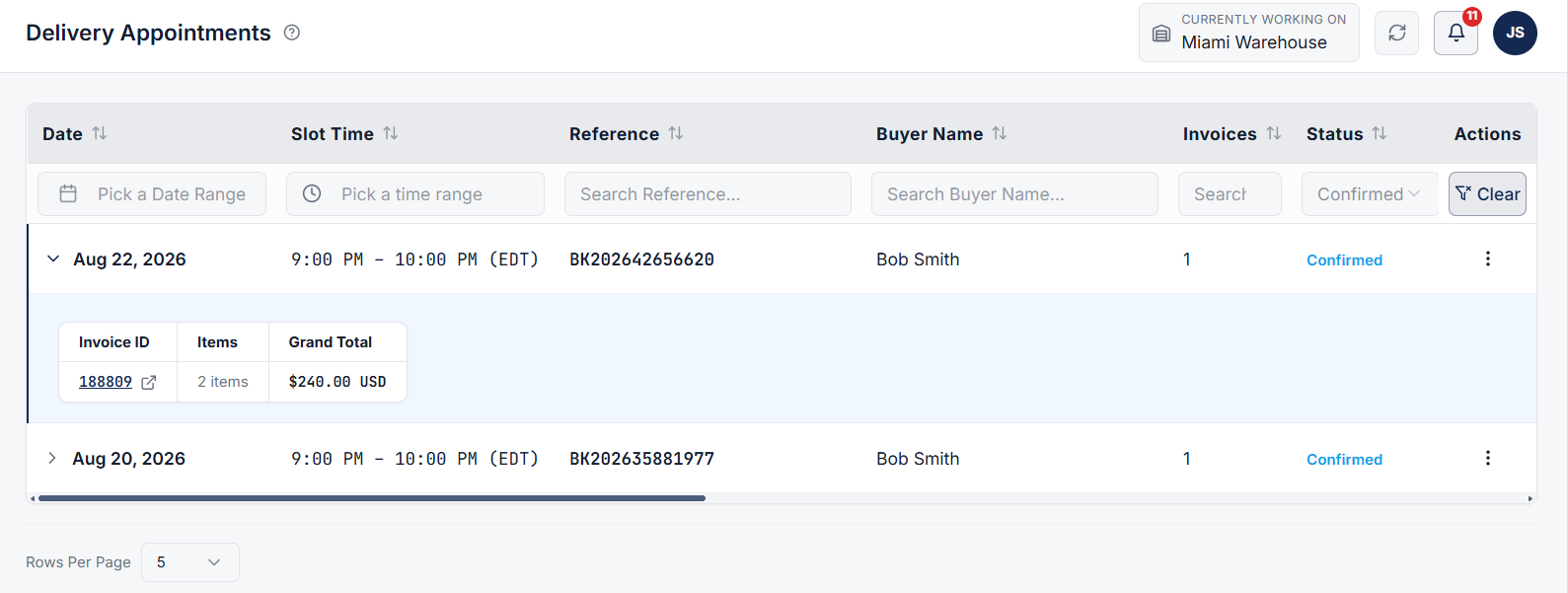
Locate the specific delivery appointment entry in the table or list. Click on the 3 dots (action menu icon) next to the appointment record to open the available action options. From the menu options, click on Create Delivery.
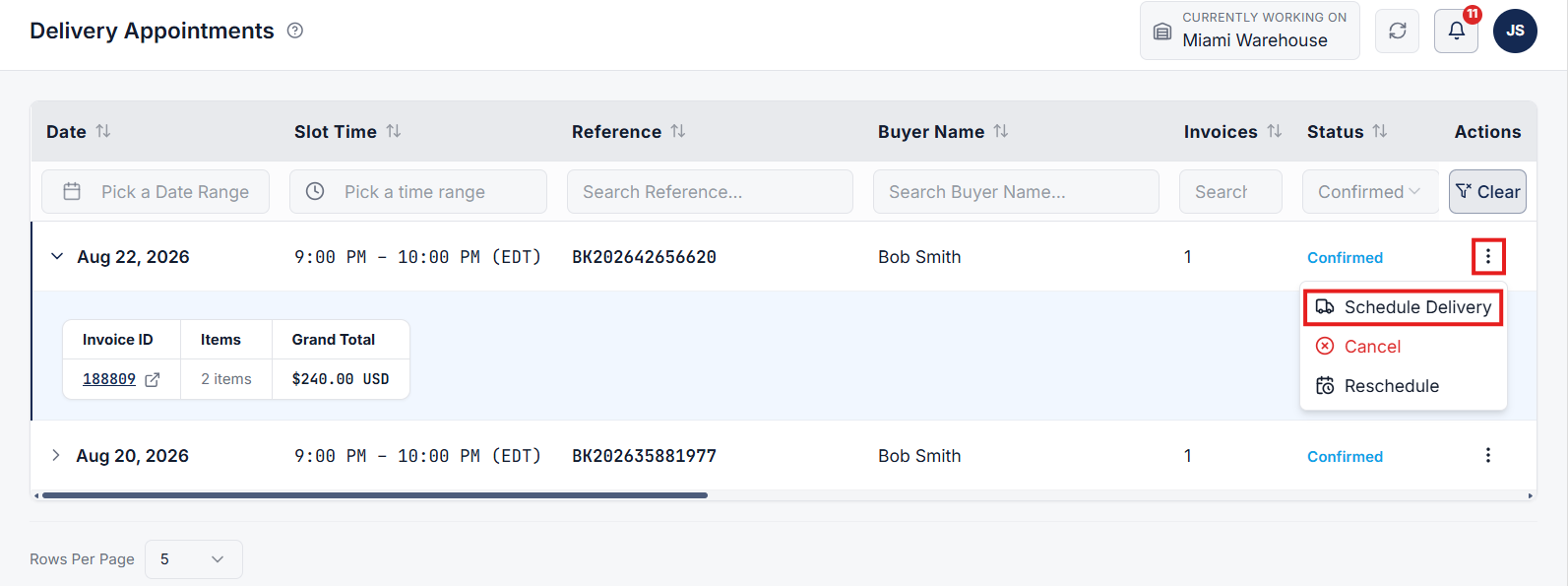
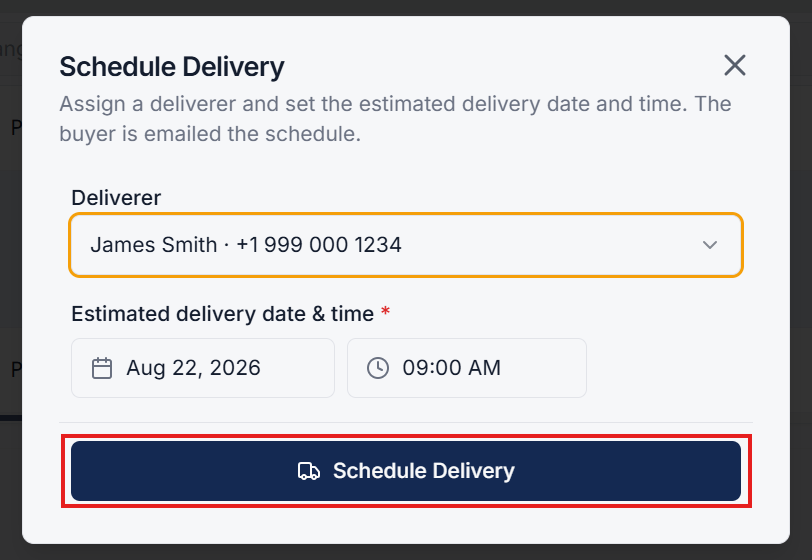
A popup modal will appear on the screen to configure the delivery details:
After entering the required details, click the Create Delivery button to finalize and assign the delivery job to the selected deliverer.
Clear answers on how this feature integrates into your daily equipment workflow.
After the invoice exists and every item is packed. Open Delivery Appointments, choose Create Delivery, pick the driver, and set the estimated time.
Each row lists date, slot time, reference, buyer, invoices, and street. Expand it to see invoice ID, item count, and total before you assign the driver.

Enable self-service or scheduled customer order pickups at warehouse facilities.
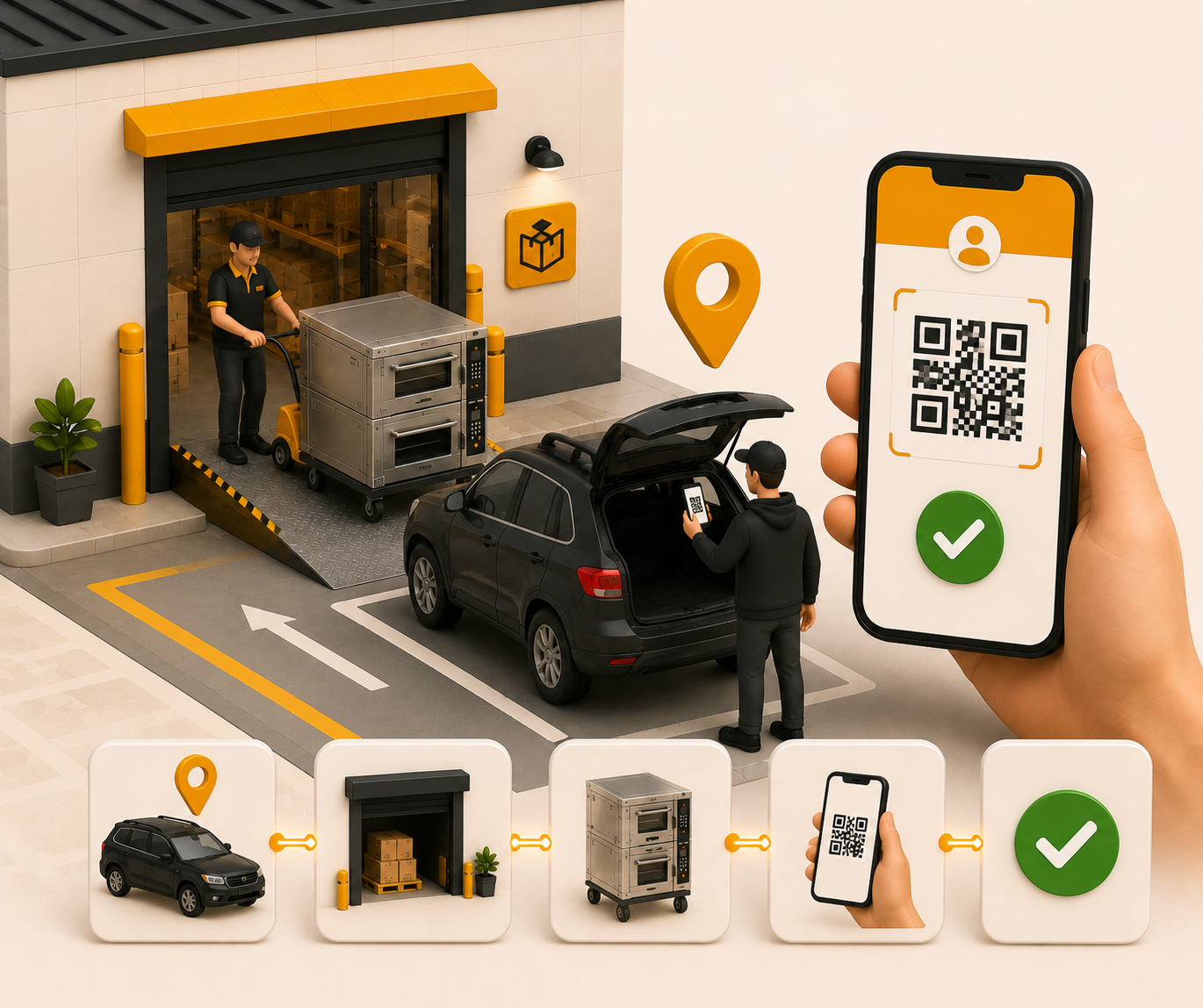

Driver delivery job management, notification alerts, status tracking, and PIN and signature delivery verification.
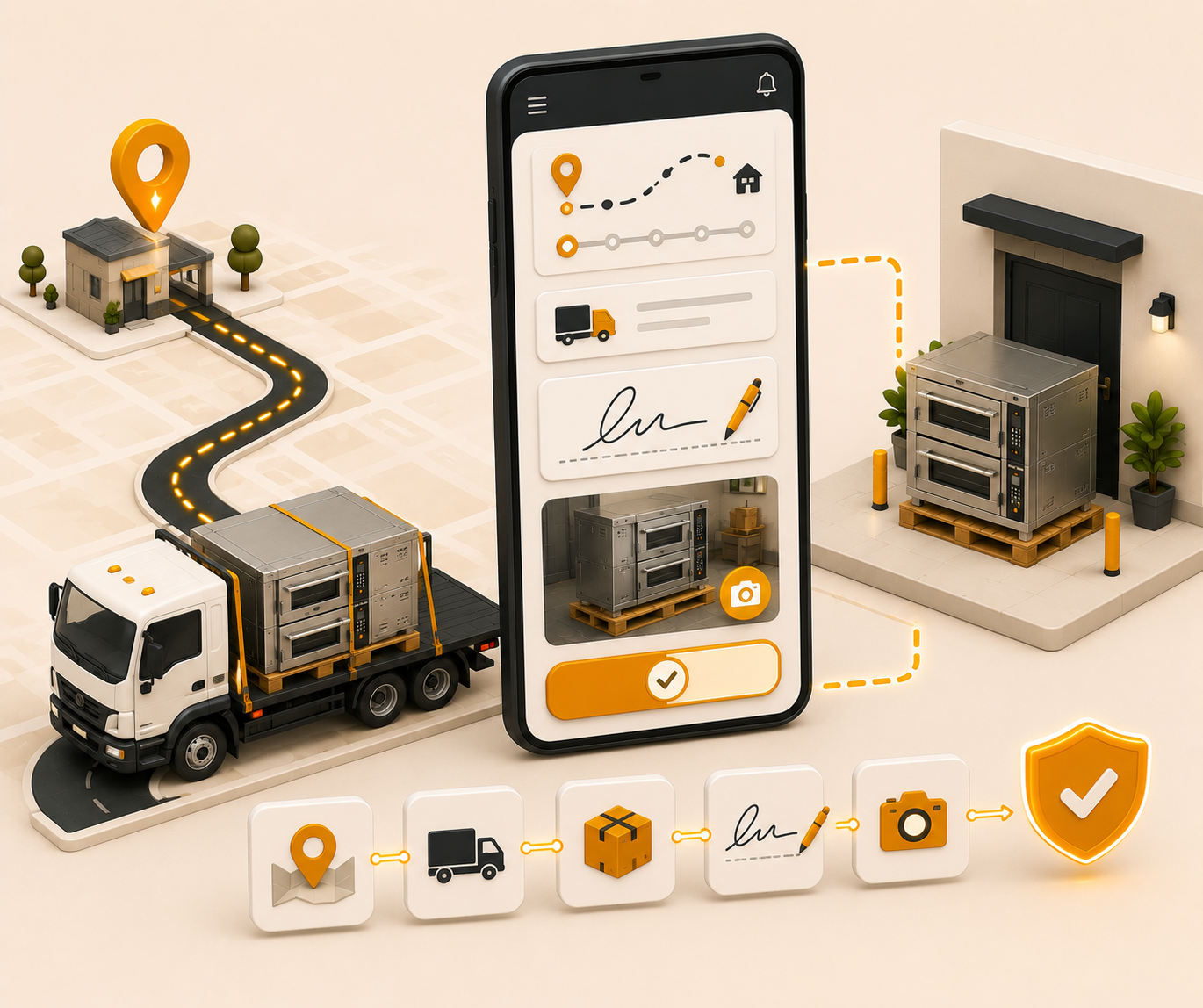
See the whole flow, from consigner pickup through warehouse, listing, and delivery, in a personalized live demo.